Configure a SAML Authentication Provider#
Configure a SAML authentication provider in TheHive.
Procedure
Prerequisites
- Users must have an existing account in TheHive local database to authenticate successfully.
- These steps assume that you have already followed the instructions to configure the authentication settings.
- The base URL is set to the public URL of TheHive. TheHive uses it to build the URL the identity provider (IdP) redirects users to after they sign in. With the default value
http://localhost:9000, users are sent back to localhost.
Login flow with multiple SAML providers
You can configure multiple SAML providers in TheHive. When a user attempts to log in, TheHive queries each provider sequentially, following the defined order. The process stops as soon as a provider grants authorization.
-
Go to the Platform management view from the sidebar menu.
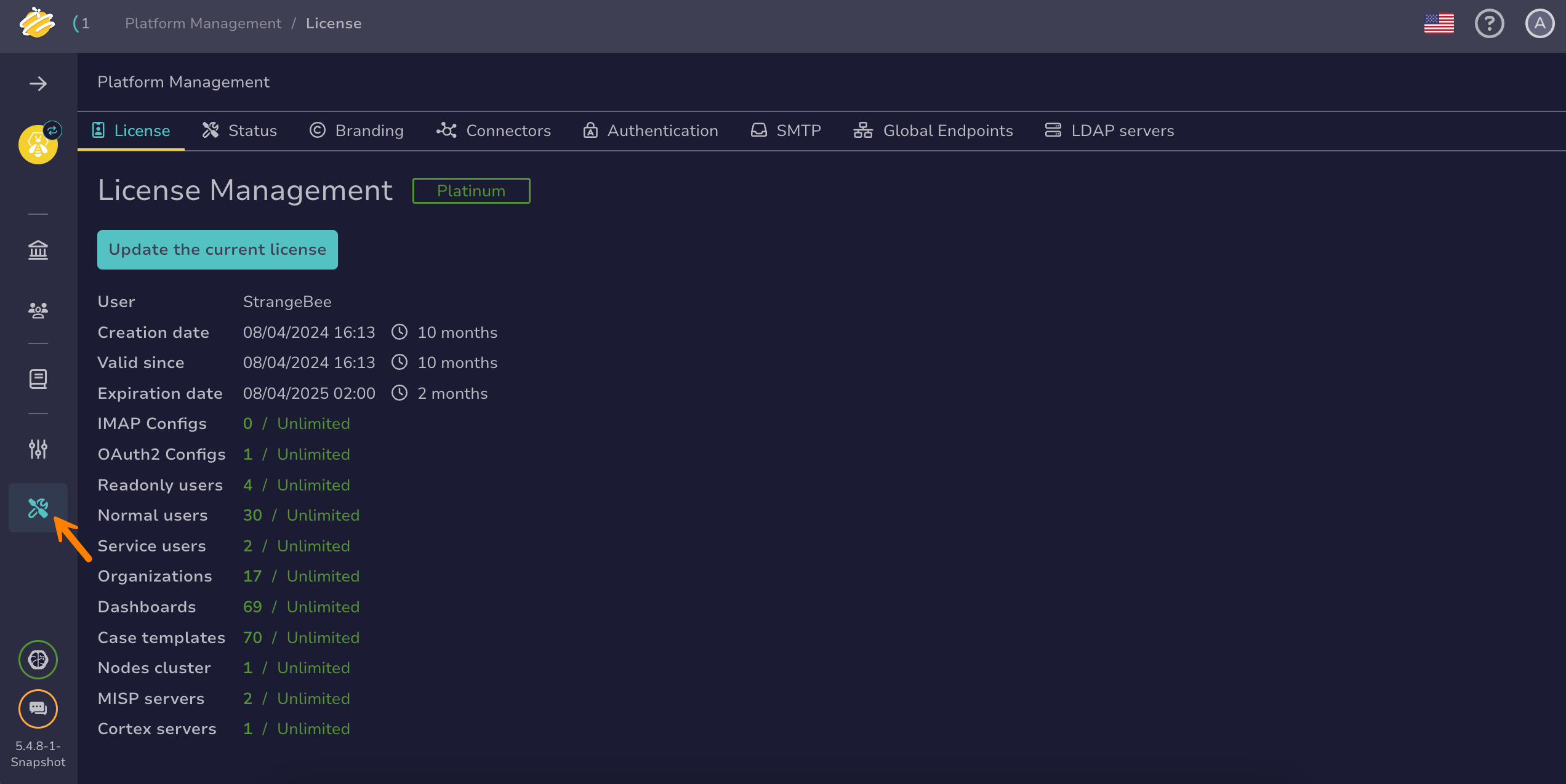
-
Select the Authentication tab.
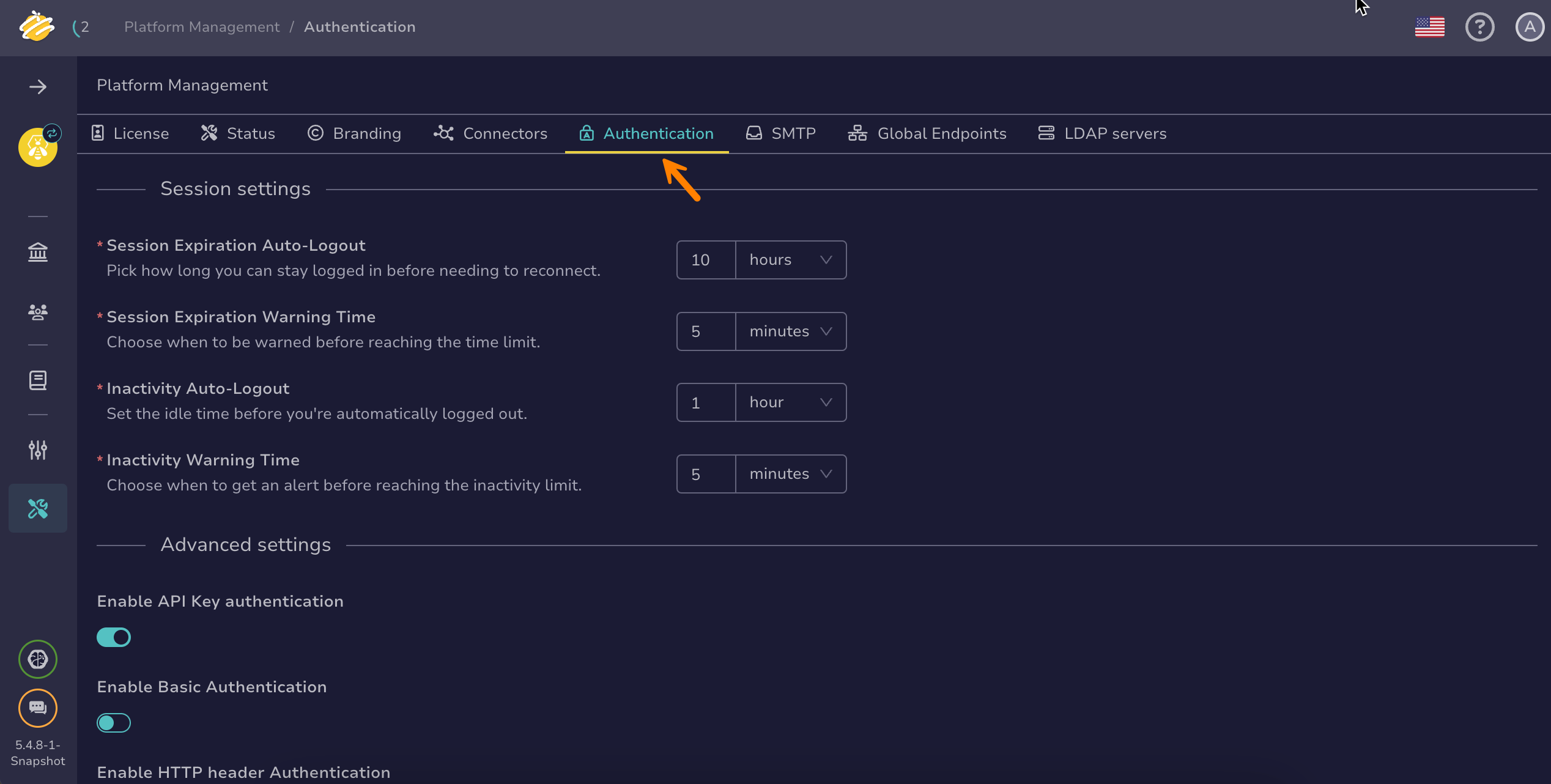
-
-
Select SAML authentication in the Authentication providers section.
-
In the SAML authentication drawer, turn on the Enable SAML toggle.
-
Select Add a provider or select .
-
Select SSO authentication in the Authentication providers section.
-
In the SSO authentication drawer, turn on the Enable SSO toggle.
-
Select Add a provider or select . Then select SAML from the dropdown list.
-
-
Enter the following information:
Fields marked with * are mandatory.
- Name *
A recognizable name for the IdP in TheHive.
Example: Microsoft Entra ID
- Identity provider metadata type *
Select how TheHive retrieves configuration information for the IdP—either from an XML file or a URL.
-
If you choose url, provide the full link to the metadata document.
Example:
https://login.microsoftonline.com/{tenant-id}/federationmetadata/2007-06/federationmetadata.xml -
If you choose xml, paste the XML metadata content directly into the field.
Example:
<?xml version="1.0" encoding="UTF-8"?>
<md: EntityDescriptor entityID="http://www.okta.com/<entity-id>"               xmlns="urn:oasis:names:tc:SAML:2.0:metadata">
    <md:IDPSSODescriptor WantAuthnRequestsSigned="false" protocolSupportEnumeration="urn:oasis:names:tc:SAML:2.0:protocol">
        <md:KeyDescriptor use="signing">
            <ds:KeyInfo xmlns:ds="http://www.w3.org/2000/09/xmldsig#">
            <!-- Replace with your key information -->
- User login attribute
The name of the attribute from the IdP that contains the user's login information (such as email or username).
- Maximum authentication life time
The maximum session duration for user authentication. This value must align with the session timeout configured on the IdP to ensure consistent session behavior.
If you're unsure of the value set in your IdP, set it to 90 days, as this is the default for most IdPs.
-
-
Copy the URL from the Callback URL / IDP-Initiated SSO URL field, then enter the following values in the SAML application registered with the IdP.
IdP setting Value Identifier or Entity ID https://<thehive_url>/api/sso/<provider_name>Reply URL or Assertion Consumer Service URL https://<thehive_url>/api/sso/<provider_name>Sign-on URL, if the IdP requires one https://<thehive_url>/loginTheHive builds
<provider_name>from the Name field. If you rename the provider, update these values in the IdP.Callback URL and base URL
The Callback URL / IDP-Initiated SSO URL field shows the address in your browser. TheHive sends the IdP a URL built from the base URL. If they don't match, the IdP rejects the sign-in or redirects users to the wrong address.