Configure an LDAP Server#
Configure an LDAP server in TheHive, including Microsoft Active Directory (AD), to periodically synchronize your local TheHive database with LDAP. This enables automatic user account creation, updates, deletion, and assignment to organizations and permission profiles within TheHive.
Procedure
-
Go to the Platform management view from the sidebar menu.
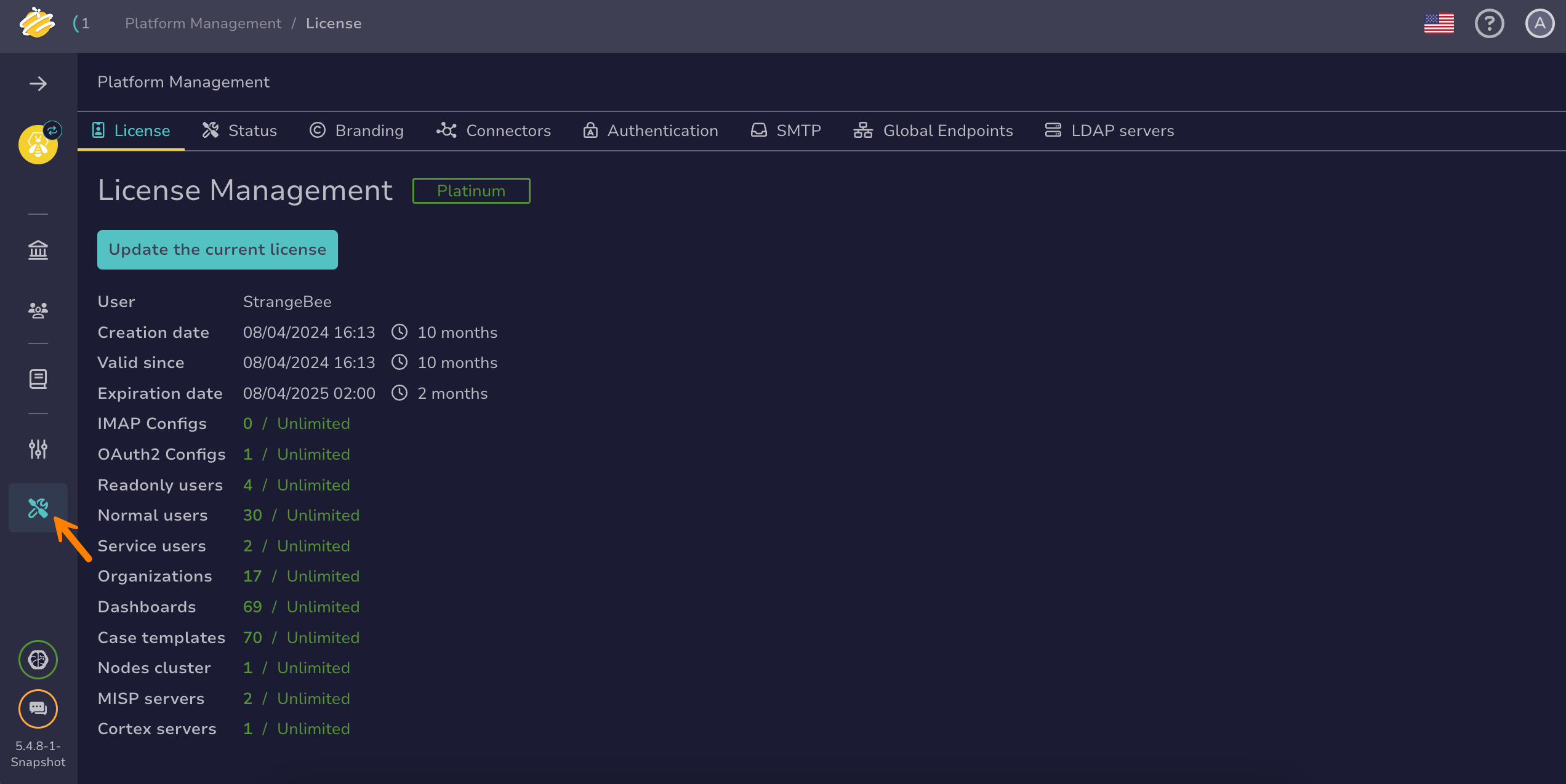
-
Select the LDAP tab.
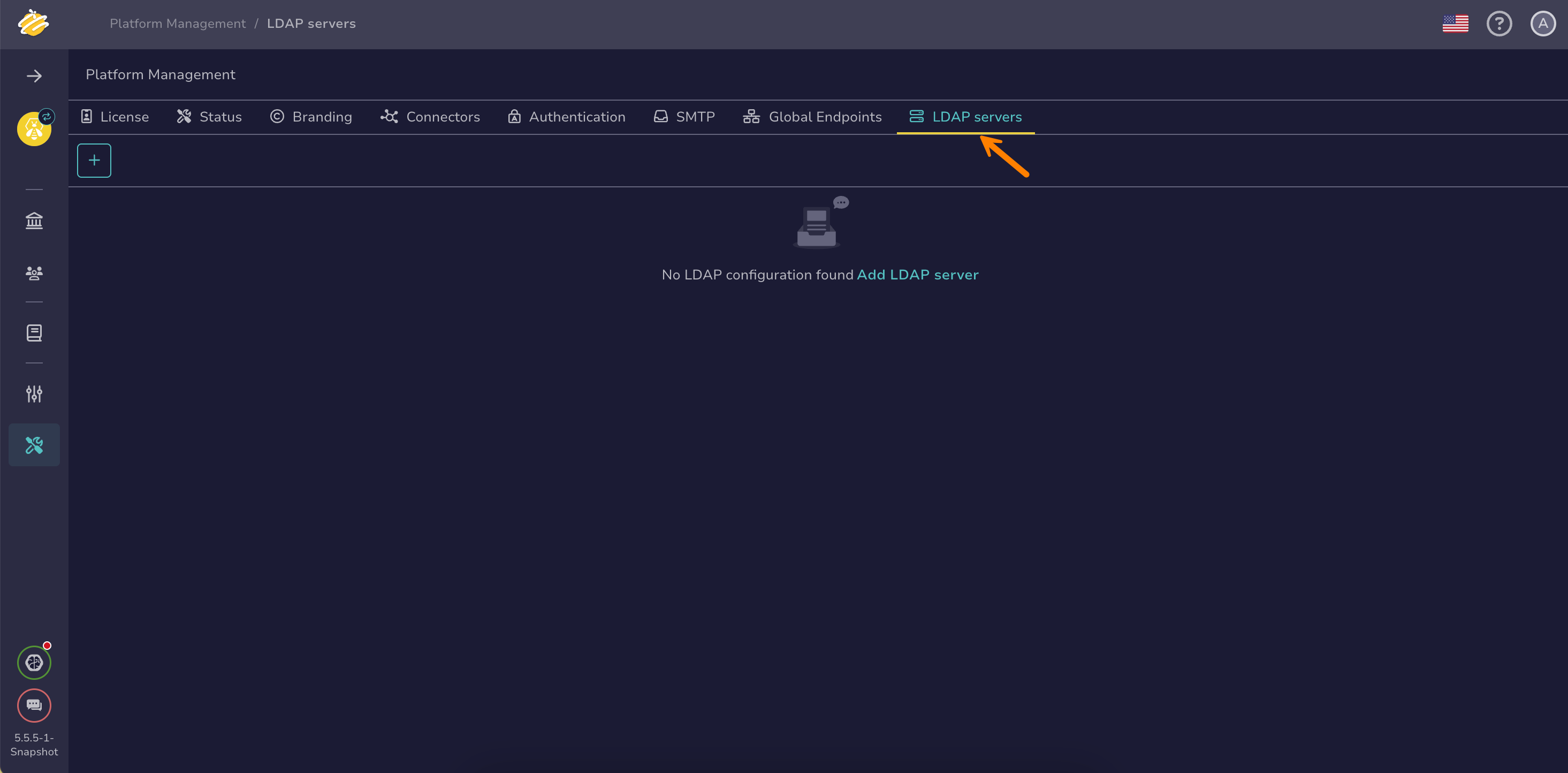
-
Select .
-
In the LDAP configuration drawer, enter the following information under the General settings section:
Fields marked with * are mandatory.
- Name of the configuration *
The domain TheHive uses to build the login of every synchronized user account. TheHive keeps the part of the LDAP login value before the
@and replaces anything after it with this name.Example: domain.local
With this name, TheHive builds the following logins:
- LDAP value lucas becomes TheHive login lucas@domain.local
- LDAP value lucas@otherdomain.local also becomes lucas@domain.local, because TheHive replaces the original domain
Set this name to the domain your users sign in with. This is usually the part after the
@in the attribute you map to Login in the next step. In AD, if you map userPrincipalName, this is the UPN suffix. Users sign in to TheHive with this login. To let them sign in with only their username, such as lucas, set the default domain for user login to the same value.The name can contain only letters, digits, hyphens, and dots. Don't use spaces. If the resulting login isn't a valid email address, synchronization fails.
Choose the name carefully
You can't change the name after you create the configuration. TheHive identifies the user accounts it synchronizes through the
@<configuration_name>suffix of their login. If you replace the configuration with a new one under a different name, TheHive stops updating and locking the accounts created with the previous name and creates new accounts with the new suffix.- Servers host name or IP address *
The address of the LDAP server you want to connect to, either a host name or an IP address.
Example: ldap.domain.local
- Auth-Use SSL
Turn on this toggle to use SSL/TLS encryption when connecting to the LDAP server for secure communication.
- DN of the service account *
The Distinguished Name (DN) of the LDAP user account used by TheHive to bind to the LDAP server.
Example: cn=thehive,ou=users,dc=domain,dc=local
- Bind password *
The password associated with the service account used for binding to the LDAP server.
- Users base DN *
The starting point in the LDAP directory tree from which user searches begins.
Example: ou=users,dc=domain,dc=local
- Filter used to search users
The LDAP search filter used to find user entries within the directory.
Example: (objectClass=user)
- Search scope
Defines how deep the LDAP search should go from the base DN.
Typical options include base, onelevel, or subtree.
- Page size
The number of entries retrieved per page during LDAP queries, useful for handling large directories efficiently.
-
Enter the following information under the Map of LDAP attributes section:
- Login *
The LDAP attribute that contains the user’s login name or username. TheHive uses only the part before the
@and appends the name of the configuration.Example: uid or userPrincipalName
- Name *
The LDAP attribute that contains the user’s full name.
Example: cn
- Member of *
The LDAP attribute that lists the groups or roles the user belongs to, used to assign permission profiles and organizations in TheHive.
Example: memberOf
- Email
The LDAP attribute holding the user’s email address.
Example: mail
- Locked
The LDAP attribute that indicates whether the user account is locked.
Example: pwdAccountLockedTime
- API key
The LDAP attribute used to store the user’s API key for TheHive authentication.
- TOTP secret
The LDAP attribute that holds the Time-Based One-Time Password (TOTP) secret for two-factor authentication (2FA).
- Type
The LDAP attribute indicating the user account type, which can be either normal or service.
-
Select Add map group field under the Groups mapping section.
-
Enter the following information:
- Group map
The LDAP attribute used to map groups to TheHive organizations and permission profiles.
Example: cn=soc,ou=groups,dc=domain,dc=local
- Organization
The name of the organization in TheHive to which the LDAP group corresponds.
Example: SOC
- Profile
The permission profile in TheHive assigned to user accounts belonging to the LDAP group.
Example: org-admin
-
Select Confirm.