Set Up a Cluster with Packages#
Guide scope
- This documentation applies to TheHive versions 5.4 and later. For earlier versions, refer to the Akka Configuration.
- This documentation applies to a fresh installation of a new instance.
Set up a fault-tolerant cluster for TheHive. Each cluster comprises three active nodes, featuring:
- Cassandra for the database
- Elasticsearch for the indexing engine
- NFS or S3-compatible object storage for file storage
- TheHive
- HAProxy for load balancing
- Keepalived for virtual IP setup
Deployment layout
You can install these applications on separate servers or on the same server. The examples in this guide use three separate servers.
Single data center only
TheHive doesn't support clusters with nodes spread across multiple data centers, including Cassandra and Elasticsearch nodes. Deploy all cluster nodes in the same data center.
Before you begin
- Verify that all system requirements for package installation are met on every node.
- Ensure that Python 3.9 is available for using the Cassandra Query Language (CQL) shell
cqlsh. Later Python versions aren't compatible.
Security considerations
Learn how TheHive handles data protection and safeguards your information.
Architecture diagram#
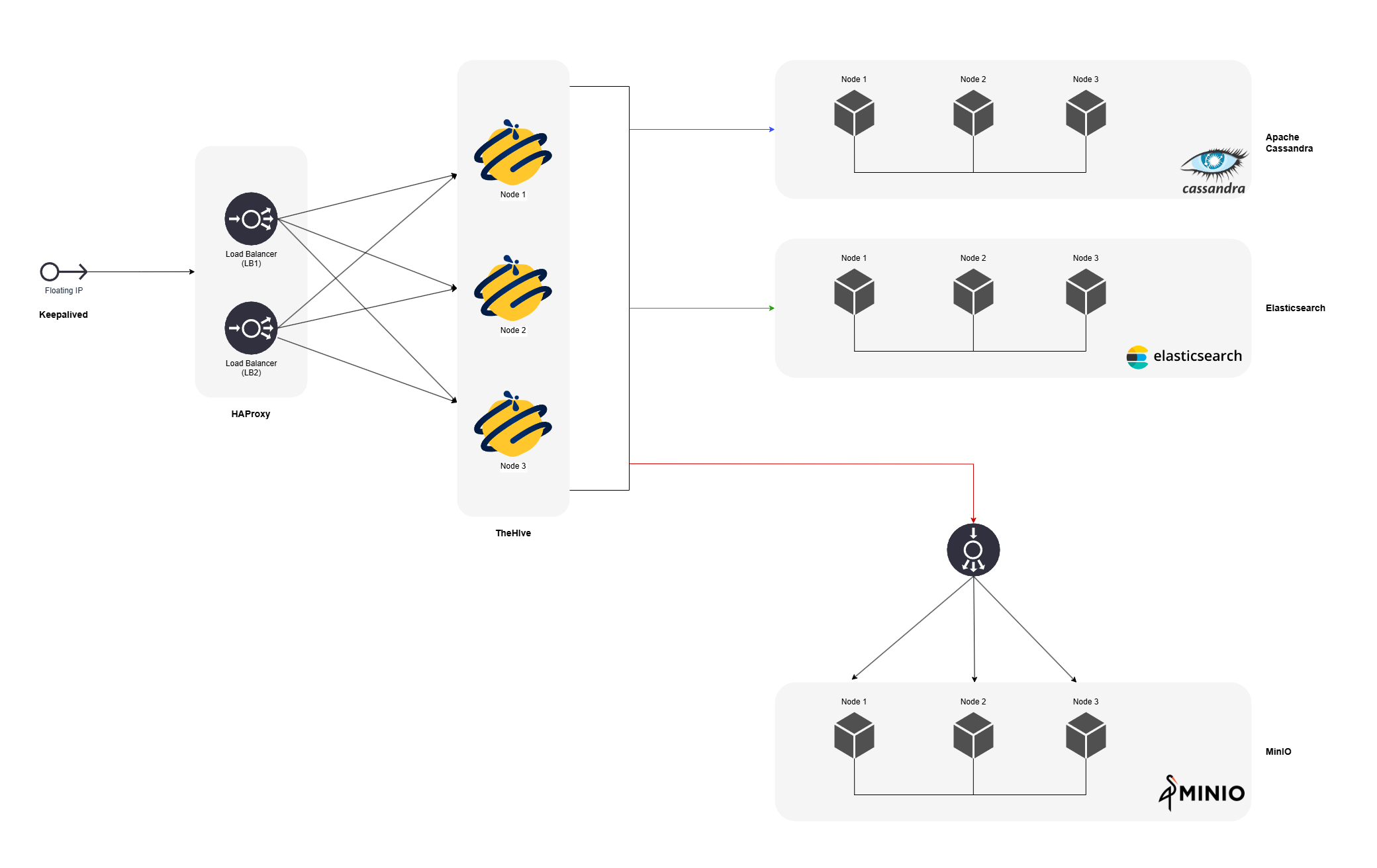
The diagram above shows the key components and their interactions.
Each component has a specific role:
- Keepalived manages a virtual IP address to provide automatic failover and maintain service continuity.
- HAProxy distributes incoming requests across TheHive nodes to improve availability and handle node failures transparently.
- Cassandra ensures durable and consistent storage of TheHive data across nodes.
- Elasticsearch enables efficient indexing and fast search capabilities.
- Shared file storage centralizes attachments and file-type observables, making them available to all cluster nodes.
- TheHive nodes run the application logic and coordinate incident response workflows and collaboration.
Step 1: Set up the Java virtual machine (JVM)#
TheHive and Cassandra both run on the JVM but require different versions: TheHive 6.x runs on Java 17, while Cassandra 4.0.x to 4.1.x requires Java 11 and doesn't support Java 17. This dual-version setup applies to TheHive 6.x only. To install TheHive 5.x, Java 11 alone is required on every node.
- On nodes running Cassandra, install Java 11 and keep it as the system default.
- On nodes running TheHive, install Java 17. TheHive service is pinned to it at Step 5.2.
- On nodes running both, install the two versions side by side: Java 11 stays the system default for Cassandra, and TheHive service alone is pinned to Java 17.
Follow Run TheHive 6 and Cassandra on the Same Host to install both versions with Amazon Corretto, running the commands on every node and keeping only the version each node needs when the components run on separate servers.
Step 2: Install and configure Apache Cassandra#
When configuring a Cassandra cluster, the goal is a setup comprising three active nodes with a replication factor of 3: data is replicated across each node, so the cluster tolerates the failure of a single node. If one node experiences hardware issues or network disruptions, the other two nodes continue to store and process incident data.
Network environment
All nodes must reside within the same network and the same data center. Ideally, deploy the nodes in different racks within that data center.
Step 2.1: Install Cassandra#
Install Cassandra on each node, following the steps in the installation guide.
Node definition
A node in this context refers to each server or machine designated to participate in the Cassandra cluster.
Step 2.2: Configure Cassandra#
On each node in the Cassandra cluster, update the configuration files as follows:
-
Update the Cassandra configuration file.
Open the
/etc/cassandra/cassandra.yamlfile on each node using a text editor:cluster_name: 'thp' num_tokens: 4 authenticator: PasswordAuthenticator authorizer: CassandraAuthorizer role_manager: CassandraRoleManager data_file_directories: - /var/lib/cassandra/data commitlog_directory: /var/lib/cassandra/commitlog saved_caches_directory: /var/lib/cassandra/saved_caches seed_provider: - class_name: org.apache.cassandra.locator.SimpleSeedProvider parameters: - seeds: "<ip_node_1>, <ip_node_2>, <ip_node_3>" listen_interface : eth0 rpc_interface: eth0 endpoint_snitch: GossipingPropertyFileSnitch- Cluster name: Set the name of the Cassandra cluster.
- Number of tokens: Configure the number of tokens for each node.
- Authentication and authorization: Specify the authenticator, authorizer, and role manager.
- Directories: Define directories for data, commit logs, and saved caches.
- Seed provider: List all IP addresses of nodes included in the cluster.
- Network interfaces: Set up the appropriate network interfaces.
- Endpoint snitch: Specify the snitch for determining network topology.
Replace
<ip_node_1>,<ip_node_2>, and<ip_node_3>with the IP addresses of all the nodes included in the cluster, and setlisten_interfaceandrpc_interfaceto the network interface name of the node,eth0in this example.Parameter details
For detailed explanations of each parameter in the YAML file, refer to the Cassandra configuration section.
-
Delete the Cassandra topology properties file.
Remove the
cassandra-topology.propertiesfile to prevent any conflicts:rm /etc/cassandra/cassandra-topology.properties -
Configure the Cassandra GossipingPropertyFileSnitch.
On each node, edit the
/etc/cassandra/cassandra-rackdc.propertiesfile to assign the datacenter and rack names:## On node 1 dc=datacenter1 rack=rack1 ## On node 2 dc=datacenter1 rack=rack2 ## On node 3 dc=datacenter1 rack=rack3
Step 2.3: Configure JVM options for Cassandra#
The JVM options control how much memory Cassandra can use, how it manages that memory, and other performance-related settings. By default, Java determines heap size automatically, which isn't recommended for production environments and may cause memory contention or out-of-memory errors.
Check if the /etc/cassandra/jvm-server.options file exists. If it doesn't, create it, then open it using a text editor and set the JVM options.
Heap size guidelines for Cassandra
Heap allocation must not exceed 50% of the available RAM and should not be less than 2 GB. Available RAM refers to the memory remaining after accounting for the operating system and other services running on the same host.
-Xms<heap_size>
-Xmx<heap_size>
-Xmn<young_gen_size>
Replace <heap_size> with the desired heap size and <young_gen_size> with the desired young generation size. Xms sets the initial heap size, Xmx sets the maximum, and Xmn sets the size of the young generation, where short-lived objects are allocated.
Repeat this step on each node.
Recommended Cassandra values when all services share the same host
-Xms2g
-Xmx4g
-Xmn200m
-Xms4g
-Xmx8g
-Xmn400m
-Xms1g
-Xmx3g
-Xmn200m
-Xms3g
-Xmx6g
-Xmn400m
For recommended values across all services, see Tune JVM Memory.
Step 2.4: Start the nodes#
To start the Cassandra service on each node, follow these steps:
-
Start the Cassandra service.
Run the following command on each node, one at a time:
sudo systemctl start cassandra -
Enable the Cassandra service to restart automatically after a system reboot.
sudo systemctl enable cassandra -
Verify node status.
Check that all nodes are up and running using the
nodetool statuscommand:root@cassandra:/# nodetool status Datacenter: datacenter1 =============== Status=Up/Down |/ State=Normal/Leaving/Joining/Moving -- Address Load Tokens Owns (effective) Host ID Rack UN <ip_node_1> 776.53 KiB 256 100.0% a79c9a8c-c99b-4d74-8e78-6b0c252abd86 rack1 UN <ip_node_2> 671.72 KiB 256 100.0% 8fda2906-2097-4d62-91f8-005e33d3e839 rack1 UN <ip_node_3> 611.54 KiB 256 100.0% 201ab99c-8e16-49b1-9b66-5444044fb1cd rack1
Step 2.5: Initialize the database#
Python compatibility for cqlsh
cqlsh requires Python 3.9. If your Linux distribution provides a newer Python version by default, you must install Python 3.9 alongside it and explicitly tell cqlsh which interpreter to use. You can do this by setting the CQLSH_PYTHON environment variable when running cqlsh: sudo -u cassandra CQLSH_PYTHON=/path/to/python3.9 cqlsh.
To initialize the database:
-
Connect to Cassandra using default credentials.
On one of the nodes, access the Cassandra Query Language (CQL) shell by running the following command, providing the IP address of the respective node:
cqlsh <ip_node_X> -u cassandra -p cassandraCqlsh may not be available on RPM-based systems
On some RPM-based distributions, the
cqlshclient isn't included with thecassandrapackage. If running cqlsh gives an error, download the official Apache Cassandra tarball that matches your server version and extract it. Then run the bundled client:./bin/cqlsh <ip_node_X> -u cassandra -p cassandra. -
Configure the system authentication replication.
Before creating new roles, modify the default replication factor for the
system_authkeyspace using the following CQL command:ALTER KEYSPACE system_auth WITH replication = {'class': 'NetworkTopologyStrategy', 'replication_factor': 3 }; -
Create a new administrator role.
To avoid relying on the default
cassandrasuperuser account, create a new administrator role and then delete the default user.a. Create the
adminrole.CREATE ROLE admin WITH PASSWORD = '<authentication_admin_password>' AND LOGIN = true AND SUPERUSER = true;Replace
<authentication_admin_password>with the password you intend to use for theadminsuperuser account.b. Disconnect from the session by pressing Ctrl+D, then reconnect as the new admin.
cqlsh <ip_node_X> -u adminc. Remove the default
cassandrauser.DROP ROLE cassandra; -
Create the
thehivekeyspace.A keyspace is the Cassandra equivalent of a database. Create a keyspace named
thehivewith a replication factor of3and durable writes enabled:CREATE KEYSPACE thehive WITH replication = {'class': 'NetworkTopologyStrategy', 'replication_factor': '3' } AND durable_writes = 'true'; -
Create a dedicated role for TheHive and grant permissions.
Finally, create a role named
thehiveand grant permissions on thethehivekeyspace.CREATE ROLE thehive WITH LOGIN = true AND PASSWORD = '<thehive_role_password>'; GRANT ALL PERMISSIONS ON KEYSPACE thehive TO 'thehive';Replace
<thehive_role_password>with the password you intend to use for thethehiverole.Note this password
Keep this password secure. You'll need to enter it later in TheHive configuration file so the application can connect to the Cassandra database.
Cassandra cluster maintenance
In a Cassandra cluster, regular repairs are required to maintain data consistency between nodes. Automate a full repair with nodetool repair -full, for example by running it weekly using cron. Failing to run regular repairs can lead to inconsistent data, read errors, and authorization issues over time.
(Optional) Step 2.6: Enable encryption for client and inter-node communication#
Enable encrypted communication between client machines and the database cluster, and between the nodes of the cluster.
Client to node encryption#
Prerequisite
Configure the necessary certificates for encryption, keystores and truststores, before you begin.
-
Open the
cassandra.yamlconfiguration file and edit theclient_encryption_optionssection.client_encryption_options: enabled: true optional: false keystore: /path/to/<keystore_file> keystore_password: <keystore_password> require_client_auth: true truststore: /path/to/<truststore_file> truststore_password: <truststore_password> protocol: TLS algorithm: SunX509 store_type: JKS cipher_suites: [TLS_RSA_WITH_AES_128_CBC_SHA, TLS_RSA_WITH_AES_256_CBC_SHA] -
Restart the Cassandra service on all nodes.
sudo systemctl restart cassandra -
Check Cassandra logs.
Review the Cassandra logs to ensure there are no errors related to SSL/TLS.
tail -n 100 /var/log/cassandra/system.log | grep -iE "error|warning"
Inter-node encryption#
Prerequisite
Configure the necessary certificates for encryption, keystores and truststores, before you begin.
-
Open the
cassandra.yamlconfiguration file and edit theserver_encryption_optionssection.server_encryption_options: internode_encryption: all keystore: /path/to/<keystore_file> keystore_password: <keystore_password> truststore: /path/to/<truststore_file> truststore_password: <truststore_password> protocol: TLS algorithm: SunX509 store_type: JKS cipher_suites: [TLS_RSA_WITH_AES_128_CBC_SHA, TLS_RSA_WITH_AES_256_CBC_SHA] require_client_auth: true enabled: true -
Restart the Cassandra service on all nodes.
sudo systemctl restart cassandra -
Check Cassandra logs.
Review the Cassandra logs to ensure there are no errors related to SSL/TLS.
tail -n 100 /var/log/cassandra/system.log | grep -iE "error|warning"
Step 3: Install and configure Elasticsearch#
Elasticsearch supported versions
TheHive
| TheHive version | Elasticsearch |
|---|---|
| 5.5.10 - 6.0.0 | 7.11.x - 9.5.x |
| 5.5.0 - 5.5.9 | 7.11.x - 8.x |
| 5.3.0 - 5.4.11 | 7.10.x - 8.x |
| 5.0.0 - 5.2.16 | 7.2.x - 7.17.x |
If using Elasticsearch for audit log storage, you must use Elasticsearch 7.17 or later.
Cortex
| Cortex version | Elasticsearch |
|---|---|
| 4.x | 8.x |
| 3.2.1 and earlier | 7.x |
Sharing a single Elasticsearch instance between TheHive and Cortex isn't recommended. If you must do it, ensure the Elasticsearch version is compatible with both applications.
Step 3.1: Install Elasticsearch#
To establish a cluster of three active Elasticsearch nodes, follow the installation instructions for each node.
Step 3.2: Configure Elasticsearch#
On each node, update the /etc/elasticsearch/elasticsearch.yml configuration file with the following parameters:
http.host:  0.0.0.0
network.bind_host:  0.0.0.0
script.allowed_types:  inline,stored
cluster.name: thehive
node.name: 'es1'
path.data: /usr/share/elasticsearch/data
path.logs: /usr/share/elasticsearch/logs
network.host: 'es1'
http.port: 9200
cluster.initial_master_nodes:
  - es1
node.master: true
discovery.seed_hosts:
  - 'es1'
  - 'es2'
  - 'es3'
thread_pool.search.queue_size: 100000
thread_pool.write.queue_size: 100000
xpack.security.enabled: true
xpack.security.http.ssl.enabled: true
xpack.security.transport.ssl.enabled: true
xpack.security.http.ssl.key: /usr/share/elasticsearch/config/certs/es1/es1.key
xpack.security.http.ssl.certificate: /usr/share/elasticsearch/config/certs/es1/es1.crt
xpack.security.http.ssl.certificate_authorities: /usr/share/elasticsearch/config/certs/ca/ca.crt
xpack.security.transport.ssl.key: /usr/share/elasticsearch/config/certs/es1/es1.key
xpack.security.transport.ssl.certificate: /usr/share/elasticsearch/config/certs/es1/es1.crt
xpack.security.transport.ssl.certificate_authorities: /usr/share/elasticsearch/config/certs/ca/ca.crt
Replace es1 with the IP address or host name of the respective node, in node.name, network.host, the certificate paths, and cluster.initial_master_nodes. Keep discovery.seed_hosts identical on all nodes to ensure proper cluster discovery.
X-Pack and SSL configuration
When configuring X-Pack and SSL with Elasticsearch, review the documentation specific to your Elasticsearch version for accurate setup instructions.
Step 3.3: Configure JVM options for Elasticsearch#
The JVM options control how much memory Elasticsearch can use, how it manages that memory, and other performance-related settings. By default, Java determines heap size automatically, which isn't recommended for production environments and may cause memory contention or out-of-memory errors.
Check if the /etc/elasticsearch/jvm.options.d/jvm.options file exists. If it doesn't, create it, then open it using a text editor and set the JVM options.
Heap size guidelines for Elasticsearch
Heap allocation must not exceed 50% of the available RAM. Available RAM refers to the memory remaining after accounting for the operating system and other services running on the same host.
-Dlog4j2.formatMsgNoLookups=true
-Xms<heap_size>
-Xmx<heap_size>
Replace <heap_size> with the desired heap size. Xms sets the initial heap size, and Xmx the maximum heap size.
Set initial and maximum heap to the same value
Set -Xms and -Xmx to the same value to prevent heap resizing at runtime and reduce CPU overhead.
Deactivate memory swapping
Memory swapping on the host running Elasticsearch degrades performance: garbage collection and cluster communication then depend on disk speed instead of RAM. Deactivate swap entirely, or set bootstrap.memory_lock: true in elasticsearch.yml to lock the JVM heap in RAM. See Disable swapping in the official Elasticsearch documentation.
Repeat this step on each node.
Recommended Elasticsearch values when all services share the same host
-Xms3000m
-Xmx3000m
-Xms7000m
-Xmx7000m
-Xms2000m
-Xmx2000m
-Xms5400m
-Xmx5400m
For recommended values across all services, see Tune JVM Memory.
Step 3.4: Start the nodes#
To start the Elasticsearch service on each node, run the following commands:
sudo systemctl start elasticsearch
sudo systemctl enable elasticsearch
The first command starts the Elasticsearch service, allowing the node to join the cluster and begin handling data requests. The second enables the service to restart automatically after a system reboot.
Step 3.5: Set a user with the right permissions for TheHive#
The example configuration at Step 3.2 enables X-Pack security, so TheHive needs a dedicated Elasticsearch user to authenticate with. Create the user and its role through the Elasticsearch API: unlike the elasticsearch-users command used on a standalone server, which manages users in a file local to one node, the API stores them in the cluster itself, shared by every node.
The commands below run from one of the Elasticsearch nodes. With the TLS configuration of Step 3.2, the API answers over HTTPS: pass the certificate authority (CA) certificate with --cacert, using the path set in xpack.security.http.ssl.certificate_authorities.
-
Set a password for the built-in
elasticsuperuser. Skip this step if the password is already set.sudo /usr/share/elasticsearch/bin/elasticsearch-reset-password -u elastic -
Create a role with the privileges needed for TheHive: the
managecluster privilege and theallindices privilege onthehive*indices. For the details of why each privilege is needed, see Step 4.4 of the installation guide.curl -u elastic:<elastic_user_password> \ --cacert /usr/share/elasticsearch/config/certs/ca/ca.crt \ -X POST "https://<ip_es_node>:9200/_security/role/thehive_role" \ -H "Content-Type: application/json" -d ' { "cluster": ["manage"], "indices": [ { "names": ["thehive*"], "privileges": ["all"] } ] }'Replace
<elastic_user_password>with the password set in the previous step, and<ip_es_node>with the IP address or host name of the node.If successful, the command returns
{"role":{"created":true}}. -
Create the
thehiveuser and assign the role.curl -u elastic:<elastic_user_password> \ --cacert /usr/share/elasticsearch/config/certs/ca/ca.crt \ -X PUT "https://<ip_es_node>:9200/_security/user/thehive" \ -H "Content-Type: application/json" -d ' { "password" : "<thehive_user_password>", "roles" : ["thehive_role"] }'Replace
<thehive_user_password>with the password you intend to use for thethehiveuser.If successful, the command returns
{"created":true}.
Note this password
Keep the <thehive_user_password> password secure. You'll need to enter it later in TheHive configuration file so the application can connect to Elasticsearch.
Step 4: Set up a shared file storage#
Shared file storage provides a common storage space used by all nodes. Several options are available.
NFS is one of the simplest methods to implement shared file storage. With a single NFS endpoint, all nodes in the cluster access and share the same files.
- Mount the NFS endpoint to
/opt/thp/thehive/fileson each node. - Set permissions: ensure the
thehiveuser has both read and write access to this directory, including the ability to create subdirectories.
TheHive can store files in object storage that implements the Amazon S3 API. This includes Amazon S3 itself, as well as many S3-compatible services, whether managed by a cloud provider or self-hosted.
For example, the SeaweedFS S3-compatible storage system has been tested and works well with TheHive.
Endpoint and availability
From TheHive perspective, you configure a single S3 endpoint. If you self-host object storage, ensure the endpoint is highly available, for example via the storage platform itself or a correctly configured load balancer.
Step 5: Install and configure TheHive#
TheHive uses the Apache Pekko toolkit to manage clustering and scalability. Apache Pekko is a framework for building distributed message-driven applications on the JVM. Within TheHive, Pekko handles inter-node communication, cluster membership, and task coordination.
Step 5.1: Install TheHive#
To deploy TheHive in a clustered environment, you must install TheHive on each TheHive node.
TheHive packages are distributed as RPM and DEB files, as well as ZIP binary packages, all available for direct download via tools like wget or curl, with installation performed manually.
All packages are hosted on an HTTPS-secured website and come with a SHA256 checksum and a GPG signature for verification.
Destination path
The commands below use /tmp/ as the download path. Replace it with the full local directory path where you want to save the files.
-
Download the installation package along with its SHA256 checksum and signature files.
-
Using
wget:wget -O /tmp/thehive_6.0.0-1_all.deb https://thehive.download.strangebee.com/6.0/deb/thehive_6.0.0-1_all.deb wget -O /tmp/thehive_6.0.0-1_all.deb.sha256 https://thehive.download.strangebee.com/6.0/sha256/thehive_6.0.0-1_all.deb.sha256 wget -O /tmp/thehive_6.0.0-1_all.deb.asc https://thehive.download.strangebee.com/6.0/asc/thehive_6.0.0-1_all.deb.ascTo download a specific version instead of the latest, use the following format:
wget -O /tmp/<file_name>.deb https://thehive.download.strangebee.com/<major.minor_version>/deb/<file_name>.deb wget -O /tmp/<file_name>.deb.sha256 https://thehive.download.strangebee.com/<major.minor_version>/sha256/<file_name>.deb.sha256 wget -O /tmp/<file_name>.deb.asc https://thehive.download.strangebee.com/<major.minor_version>/asc/<file_name>.deb.asc- Replace
<file_name>with the full name of the versioned file you want to install. For example, usethehive_5.8.1-1_all. - Replace
<major.minor_version>with the corresponding version directory. For example, use5.8.
Package repository
For details on package organization and naming conventions, see TheHive Package Repository.
- Replace
-
Using
curl:curl -o /tmp/thehive_6.0.0-1_all.deb https://thehive.download.strangebee.com/6.0/deb/thehive_6.0.0-1_all.deb curl -o /tmp/thehive_6.0.0-1_all.deb.sha256 https://thehive.download.strangebee.com/6.0/sha256/thehive_6.0.0-1_all.deb.sha256 curl -o /tmp/thehive_6.0.0-1_all.deb.asc https://thehive.download.strangebee.com/6.0/asc/thehive_6.0.0-1_all.deb.ascTo download a specific version instead of the latest, use the following format:
curl -o /tmp/<file_name>.deb https://thehive.download.strangebee.com/<major.minor_version>/deb/<file_name>.deb curl -o /tmp/<file_name>.deb.sha256 https://thehive.download.strangebee.com/<major.minor_version>/sha256/<file_name>.deb.sha256 curl -o /tmp/<file_name>.deb.asc https://thehive.download.strangebee.com/<major.minor_version>/asc/<file_name>.deb.asc- Replace
<file_name>with the full name of the versioned file you want to install. For example, usethehive_5.8.1-1_all. - Replace
<major.minor_version>with the corresponding version directory. For example, use5.8.
Package repository
For details on package organization and naming conventions, see TheHive Package Repository.
- Replace
-
-
Verify the integrity of the downloaded package.
-
Check the SHA256 checksum by comparing it with the provided value.
a. Generate the SHA256 checksum of your downloaded package.
sha256sum /tmp/thehive_6.0.0-1_all.debb. Compare the output hash with the official SHA256 value listed in the .sha256 file.
cat /tmp/thehive_6.0.0-1_all.deb.sha256c. If both hashes match exactly, the file integrity is verified. If not, the file may be corrupted or tampered with—don't proceed with installation, and contact the StrangeBee Security team.
-
Verify the GPG signature using the public key.
a. Download the public key at keys.download.strangebee.com using
wgetorcurl.wget -O /tmp/strangebee.gpg https://keys.download.strangebee.com/latest/gpg/strangebee.gpgcurl -o /tmp/strangebee.gpg https://keys.download.strangebee.com/latest/gpg/strangebee.gpgb. Import the key into your GPG keyring.
gpg --import /tmp/strangebee.gpgc. Verify the downloaded package signature.
gpg --verify /tmp/thehive_6.0.0-1_all.deb.asc /tmp/thehive_6.0.0-1_all.debd. Expected result.
You should see output similar to:
gpg: Good signature from "TheHive Project (TheHive release key) <support@thehive-project.org>"The key fingerprint must match:
0CD5 AC59 DE5C 5A8E 0EE1 3849 3D99 BB18 562C BC1CExpected GPG warning
This warning is expected. It means the package is signed with the official TheHive release key, but you haven't marked this key asgpg: WARNING: This key is not certified with a trusted signature! gpg: There is no indication that the signature belongs to the owner.trustedin your local GPG setup. As long as you seeGood signatureand the fingerprint matches, the verification is successful. Don't mark our key as globally trusted—the warning is a normal safety reminder and should remain visible.If you don't see
Good signature, if the fingerprint differs, or if the signature is reported asBAD, don't install the package. This indicates the integrity or authenticity of the file can't be confirmed. Report the issue to the StrangeBee Security team.
-
-
Install the package.
-
Using
apt-getto manage dependencies automatically:sudo apt-get install /tmp/thehive_6.0.0-1_all.deb -
Using
dpkg:sudo dpkg -i /tmp/thehive_6.0.0-1_all.deb
-
Destination path
The commands below use /tmp/ as the download path. Replace it with the full local directory path where you want to save the files.
-
Download the installation package along with its SHA256 checksum and signature files.
-
Using
wget:wget -O /tmp/thehive-6.0.0-1.noarch.rpm https://thehive.download.strangebee.com/6.0/rpm/thehive-6.0.0-1.noarch.rpm wget -O /tmp/thehive-6.0.0-1.noarch.rpm.sha256 https://thehive.download.strangebee.com/6.0/sha256/thehive-6.0.0-1.noarch.rpm.sha256 wget -O /tmp/thehive-6.0.0-1.noarch.rpm.asc https://thehive.download.strangebee.com/6.0/asc/thehive-6.0.0-1.noarch.rpm.ascTo download a specific version instead of the latest, use the following format:
wget -O /tmp/<file_name>.noarch.rpm https://thehive.download.strangebee.com/<major.minor_version>/rpm/<file_name>.noarch.rpm wget -O /tmp/<file_name>.noarch.rpm.sha256 https://thehive.download.strangebee.com/<major.minor_version>/sha256/<file_name>.noarch.rpm.sha256 wget -O /tmp/<file_name>.noarch.rpm.asc https://thehive.download.strangebee.com/<major.minor_version>/asc/<file_name>.noarch.rpm.asc- Replace
<file_name>with the full name of the versioned file you want to install. For example, usethehive-5.8.1-1. - Replace
<major.minor_version>with the corresponding version directory. For example, use5.8.
Package repository
For details on package organization and naming conventions, see TheHive Package Repository.
- Replace
-
Using
curl:curl -o /tmp/thehive-6.0.0-1.noarch.rpm https://thehive.download.strangebee.com/6.0/rpm/thehive-6.0.0-1.noarch.rpm curl -o /tmp/thehive-6.0.0-1.noarch.rpm.sha256 https://thehive.download.strangebee.com/6.0/sha256/thehive-6.0.0-1.noarch.rpm.sha256 curl -o /tmp/thehive-6.0.0-1.noarch.rpm.asc https://thehive.download.strangebee.com/6.0/asc/thehive-6.0.0-1.noarch.rpm.ascTo download a specific version instead of the latest, use the following format:
curl -o /tmp/<file_name>.noarch.rpm https://thehive.download.strangebee.com/<major.minor_version>/rpm/<file_name>.noarch.rpm curl -o /tmp/<file_name>.noarch.rpm.sha256 https://thehive.download.strangebee.com/<major.minor_version>/sha256/<file_name>.noarch.rpm.sha256 curl -o /tmp/<file_name>.noarch.rpm.asc https://thehive.download.strangebee.com/<major.minor_version>/asc/<file_name>.noarch.rpm.asc- Replace
<file_name>with the full name of the versioned file you want to install. For example, usethehive-5.8.1-1. - Replace
<major.minor_version>with the corresponding version directory. For example, use5.8.
Package repository
For details on package organization and naming conventions, see TheHive Package Repository.
- Replace
-
-
Verify the integrity of the downloaded package.
-
Check the SHA256 checksum by comparing it with the provided value.
a. Generate the SHA256 checksum of your downloaded package.
sha256sum /tmp/thehive-6.0.0-1.noarch.rpmb. Compare the output hash with the official SHA256 value listed in the .sha256 file.
cat /tmp/thehive-6.0.0-1.noarch.rpm.sha256c. If both hashes match exactly, the file integrity is verified. If not, the file may be corrupted or tampered with—don't proceed with installation, and contact the StrangeBee Security team
-
Verify the GPG signature using the public key.
a. Download the public key at keys.download.strangebee.com using
wgetorcurl.wget -O /tmp/strangebee.gpg https://keys.download.strangebee.com/latest/gpg/strangebee.gpgcurl -o /tmp/strangebee.gpg https://keys.download.strangebee.com/latest/gpg/strangebee.gpgb. Import the key into your GPG keyring.
gpg --import /tmp/strangebee.gpgc. Verify the downloaded package signature.
gpg --verify /tmp/thehive-6.0.0-1.noarch.rpm.asc /tmp/thehive-6.0.0-1.noarch.rpmd. Expected result.
You should see output similar to:
gpg: Good signature from "TheHive Project (TheHive release key) <support@thehive-project.org>"The key fingerprint must match:
0CD5 AC59 DE5C 5A8E 0EE1 3849 3D99 BB18 562C BC1CExpected GPG warning
This warning is expected. It means the package is signed with the official TheHive release key, but you haven't marked this key asgpg: WARNING: This key is not certified with a trusted signature! gpg: There is no indication that the signature belongs to the owner.trustedin your local GPG setup. As long as you seeGood signatureand the fingerprint matches, the verification is successful. Don't mark our key as globally trusted—the warning is a normal safety reminder and should remain visible.If you don't see
Good signature, if the fingerprint differs, or if the signature is reported asBAD, don't install the package. This indicates the integrity or authenticity of the file can't be confirmed. Report the issue to the StrangeBee Security team.
-
-
Install the package.
-
Using
yumto manage dependencies automatically:sudo yum install /tmp/thehive-6.0.0-1.noarch.rpm -
Using
dnfto manage dependencies automatically:sudo dnf install /tmp/thehive-6.0.0-1.noarch.rpm -
Using
rpm:sudo rpm -ivh /tmp/thehive-6.0.0-1.noarch.rpm
-
If you prefer more control over where TheHive is installed, need to use it in environments without package managers, or want to avoid dependency issues, you can install TheHive by downloading a ZIP binary package.
Destination path
The commands below use /opt/ as the download path. Replace it with the full local directory path where you want to save the files.
-
Download the binary package along with its SHA256 checksum and signature files. You can install TheHive anywhere on your filesystem.
-
Using
wgetwget -O /opt/thehive-6.0.0-1.zip https://thehive.download.strangebee.com/6.0/zip/thehive-6.0.0-1.zip wget -O /opt/thehive-6.0.0-1.zip.sha256 https://thehive.download.strangebee.com/6.0/sha256/thehive-6.0.0-1.zip.sha256 wget -O /opt/thehive-6.0.0-1.zip.asc https://thehive.download.strangebee.com/6.0/asc/thehive-6.0.0-1.zip.ascTo download a specific version instead of the latest, use the following format:
wget -O /opt/<file_name>.zip thehive.download.strangebee.com/<major.minor_version>/zip/<file_name>.zip wget -O /opt/<file_name>.zip.sha256 thehive.download.strangebee.com/<major.minor_version>/sha256/<file_name>.zip.sha256 wget -O /opt/<file_name>.zip.asc thehive.download.strangebee.com/<major.minor_version>/asc/<file_name>.zip.asc- Replace
<file_name>with the full name of the versioned file you want to install. For example, usethehive-5.8.1-1. - Replace
<major.minor_version>with the corresponding version directory. For example, use5.8.
Package repository
For details on package organization and naming conventions, see TheHive Package Repository.
- Replace
-
Using
curlcurl -o /opt/thehive-6.0.0-1.zip https://thehive.download.strangebee.com/6.0/zip/thehive-6.0.0-1.zip curl -o /opt/thehive-6.0.0-1.zip.sha256 https://thehive.download.strangebee.com/6.0/sha256/thehive-6.0.0-1.zip.sha256 curl -o /opt/thehive-6.0.0-1.zip.asc https://thehive.download.strangebee.com/6.0/asc/thehive-6.0.0-1.zip.ascTo download a specific version instead of the latest, use the following format:
curl -o /opt/<file_name>.zip thehive.download.strangebee.com/<major.minor_version>/zip/<file_name>.zip curl -o /opt/<file_name>.zip.sha256 thehive.download.strangebee.com/<major.minor_version>/sha256/<file_name>.zip.sha256 curl -o /opt/<file_name>.zip.asc thehive.download.strangebee.com/<major.minor_version>/asc/<file_name>.zip.asc- Replace
<file_name>with the full name of the versioned file you want to install. For example, usethehive-5.8.1-1. - Replace
<major.minor_version>with the corresponding version directory. For example, use5.8.
Package repository
For details on package organization and naming conventions, see TheHive Package Repository.
- Replace
-
-
Verify the integrity of the downloaded package.
-
Check the SHA256 checksum by comparing it with the provided value.
a. Generate the SHA256 checksum of your downloaded package.
sha256sum /opt/thehive-6.0.0-1.zipb. Compare the output hash with the official SHA256 value listed in the .sha256 file.
cat /opt/thehive-6.0.0-1.zip.sha256c. If both hashes match exactly, the file integrity is verified. If not, the file may be corrupted or tampered with—don't proceed with unzipping or installation, and contact the StrangeBee Security team.
-
Verify the GPG signature using the public key.
a. Download the public key at keys.download.strangebee.com using
wgetorcurl.wget -O /opt/strangebee.gpg https://keys.download.strangebee.com/latest/gpg/strangebee.gpgcurl -o /opt/strangebee.gpg https://keys.download.strangebee.com/latest/gpg/strangebee.gpgb. Import the key into your GPG keyring.
gpg --import /opt/strangebee.gpgc. Verify the downloaded package signature.
gpg --verify /opt/thehive-6.0.0-1.zip.asc /opt/thehive-6.0.0-1.zipd. Expected result.
You should see output similar to:
gpg: Good signature from "TheHive Project (TheHive release key) <support@thehive-project.org>"The key fingerprint must match:
0CD5 AC59 DE5C 5A8E 0EE1 3849 3D99 BB18 562C BC1CExpected GPG warning
This warning is expected. It means the package is signed with the official TheHive release key, but you haven't marked this key asgpg: WARNING: This key is not certified with a trusted signature! gpg: There is no indication that the signature belongs to the owner.trustedin your local GPG setup. As long as you seeGood signatureand the fingerprint matches, the verification is successful. Don't mark our key as globally trusted—the warning is a normal safety reminder and should remain visible.If you don't see
Good signature, if the fingerprint differs, or if the signature is reported asBAD, don't install the package. This indicates the integrity or authenticity of the file can't be confirmed. Report the issue to the StrangeBee Security team.
-
-
Unzip the package.
Unzip paths
- Replace
/opt/thehive-6.0.0-1.zipwith the full path to the ZIP file you downloaded. - Replace
/opt/after-dwith the directory where you want to extract the contents of the archive.
unzip /opt/thehive-6.0.0-1.zip -d /opt/ sudo ln -s /opt/thehive-6.0.0-1 /opt/thehive - Replace
-
Prepare the system by creating a dedicated, non-privileged user account to run TheHive. Ensure this user has permission to create log files in
/opt/thehive/logs.sudo addgroup thehive sudo adduser --system thehive sudo chown -R thehive:thehive /opt/thehive sudo mkdir /etc/thehive sudo touch /etc/thehive/application.conf sudo chown root:thehive /etc/thehive sudo chgrp thehive /etc/thehive/application.conf sudo chmod 640 /etc/thehive/application.conf -
Copy the systemd script into
/etc/systemd/system/thehive.service.cd /tmp wget https://raw.githubusercontent.com/TheHive-Project/TheHive/master/package/thehive.service sudo cp thehive.service /etc/systemd/system/thehive.service
Step 5.2: Configure TheHive#
Configure the cluster#
In this guide, node 1 is assumed to serve as the master node. Configure the pekko component in the /etc/thehive/application.conf file of each node as follows:
pekko {
  cluster.enable = on
  actor {
    provider = cluster
  }
remote.artery {
  canonical {
    hostname = "<ip_address>"
    port = 2551
  }
}
cluster.seed-nodes = [
                      "pekko://application@<node_1_ip_address>:2551",
                      "pekko://application@<node_2_ip_address>:2551",
                      "pekko://application@<node_3_ip_address>:2551"
                    ]
cluster.min-nr-of-members = 2
}
Replace <ip_address> with the IP address of the current node.
Replace <node_1_ip_address>, <node_2_ip_address>, and <node_3_ip_address> with the IP addresses of the nodes. Keep the cluster.seed-nodes list identical on all nodes: it must contain at least one active node.
Set cluster.min-nr-of-members to half the number of nodes plus one: 2 for three nodes.
Configure the service#
Configure the application.baseUrl and play.http.context parameters in the /etc/thehive/application.conf file of each node, as described in the service configuration section of the installation guide.
In a cluster, application.baseUrl must be the public URL users enter in their browser, served through the load balancer and its virtual IP address, never the address of an individual node. Use the same value on all nodes.
Configure the database and index engine#
To configure the database and index engine for TheHive, update the /etc/thehive/application.conf file as follows:
## Database configuration
db.janusgraph {
    storage {
    ## Cassandra configuration
        backend = cql
        hostname = ["<ip_node_1>", "<ip_node_2>", "<ip_node_3>"]
        # Cassandra authentication (recommended)
        username = "thehive"
        password = "<thehive_role_password>"
        cql {
            cluster-name = thp
            keyspace = thehive
        }
    }
    index.search {
    ## Elasticsearch configuration
        backend = elasticsearch
        hostname = ["<ip_es_node_1>", "<ip_es_node_2>", "<ip_es_node_3>"]
        index-name = thehive
        # Elasticsearch authentication (recommended)
        elasticsearch {
            http {
                auth {
                    type = basic
                    basic {
                        username = "thehive"
                        password = "<thehive_user_password>"
                    }
                }
            }
        }
    }
}
Consistent configuration across all TheHive nodes
All TheHive nodes must have the same configuration.
The Elasticsearch configuration must use the default value for script.allowed_types, or contain the following configuration line:
script.allowed_types: inline,stored
Replace <ip_node_1>, <ip_node_2>, and <ip_node_3> with the respective IP addresses of your Cassandra nodes.
Replace <ip_es_node_1>, <ip_es_node_2>, and <ip_es_node_3> with the respective IP addresses of your Elasticsearch nodes.
Replace <thehive_role_password> with the password set in Step 2.5.
Replace <thehive_user_password> with the password set in Step 3.5.
You can remove the lines under # Cassandra authentication (recommended) and # Elasticsearch authentication (recommended) if you didn't enable authentication for Cassandra or Elasticsearch.
To set up SSL for Cassandra and Elasticsearch connections, see Configure Database and Index SSL. For more information about the storage parameters, see the JanusGraph configuration reference.
Configure file storage#
File storage contains attachments from cases, alerts, and organizations, as well as observables of type file. All files are stored in their original form as plaintext.
All TheHive nodes must access the same file storage, ideally through an identical NFS mount point. Then, on each node:
-
Set ownership and permissions so that only the
thehiveuser can read and write files.sudo chown -R thehive:thehive /opt/thp/thehive/files sudo chmod 700 /opt/thp/thehive/files -
Update the
/etc/thehive/application.confTheHive configuration file.storage { provider = localfs localfs.location = /opt/thp/thehive/files }The path can be changed: it must belong to the user and group running TheHive service,
thehive:thehiveby default.
If you decide to use object storage, configure TheHive to store files using an Amazon S3 or S3-compatible endpoint.
Before you begin, make sure you have:
- An existing bucket
- An access key and secret key, or equivalent credentials for your storage service
- The S3-compatible endpoint URL
- The region configured for your S3 service. If it doesn't define one, use
us-east-1
To enable S3 file storage in a TheHive cluster, configure the storage section in /etc/thehive/application.conf on each TheHive node, using the same bucket and endpoint settings.
storage {
  provider: s3
  s3 {
    bucket = "<bucket_name>"
    readTimeout = 1 minute
    writeTimeout = 1 minute
    chunkSize = 1 MB
    endpoint-url = "https://<s3_endpoint>"
    aws.credentials.access-key-id = "<access_key>"
    aws.credentials.provider = "static"
    aws.credentials.secret-access-key = "<secret_key>"
    access-style = path
    aws.region.provider = "static"
    aws.region.default-region = "<region>"
  }
}
Access style
Some S3-compatible providers require path-style access, while others support or prefer virtual-hosted style. SeaweedFS requires path-style access when used with TheHive.
High availability
Managed services expose a single highly available endpoint. For self-hosted S3-compatible platforms, ensure your endpoint is highly available, for example via the storage platform itself or a properly configured load balancer.
Configure JVM options for TheHive#
TheHive 6.x requires Java 17, so the service file first pins TheHive to the Java 17 runtime installed at Step 1. The JVM options then control how much memory TheHive can use, how it manages that memory, and other performance-related settings. By default, Java determines heap size automatically, which isn't recommended for production environments and may cause memory contention or out-of-memory errors.
-
Open the
/etc/default/thehivefile using a text editor. -
Pin TheHive to Java 17 by adding the following line. This setting applies to TheHive service only: on a node also running Cassandra, Cassandra keeps using the system default Java 11. Skip this line when installing TheHive 5.x, which runs on the system default Java 11.
JAVA_HOME="/usr/lib/jvm/java-17-amazon-corretto" -
Uncomment the
JAVA_OPTSvariable. -
In the
thehivefile, set the JVM options.Heap size guidelines for TheHive
Heap allocation must not exceed 60% of the available RAM. Available RAM refers to the memory remaining after accounting for the operating system and other services running on the same host.
-Xms<heap_size>
-Xmx<heap_size>
-XX:MaxMetaspaceSize=<metaspace_size>
-XX:ReservedCodeCacheSize=<code_cache_size>
Replace
<heap_size>with the desired heap size.Set initial and maximum heap to the same value
Set
-Xmsand-Xmxto the same value to prevent heap resizing at runtime and reduce CPU overhead.Replace
<metaspace_size>with the desired Metaspace limit.Replace
<code_cache_size>with the desired code cache limit.Recommended TheHive values when all services share the same host
-Xms3000m
-Xmx3000m
-XX:MaxMetaspaceSize=400m
-XX:ReservedCodeCacheSize=400m
-Xms7250m -Xmx7250m -XX:MaxMetaspaceSize=400m -XX:ReservedCodeCacheSize=400m-Xms2000m -Xmx2000m -XX:MaxMetaspaceSize=400m -XX:ReservedCodeCacheSize=400m-Xms5400m -Xmx5400m -XX:MaxMetaspaceSize=400m -XX:ReservedCodeCacheSize=400mFor recommended values across all services, see Tune JVM Memory.
-
Save your modifications in the
thehivefile.
Repeat this step on each node.
Optional: Configure the secret key for the Play Framework#
TheHive uses a secret key to sign session cookies and ensure secure user authentication.
Skip this step if you installed TheHive using DEB or RPM packages—they generate the key automatically.
For other installation methods:
-
Generate a secret key on the first node.
cat > /etc/thehive/secret.conf << _EOF_
play.http.secret.key="$(cat /dev/urandom | tr -dc 'a-zA-Z0-9' | fold -w 64 | head -n 1)"
_EOF_
Minimum key length
TheHive 5.4 and later requires a minimum 32-character secret key. The command above generates a 64-character key for enhanced security.
-
Set appropriate file permissions.
sudo chmod 400 /etc/thehive/secret.conf sudo chown thehive:thehive /etc/thehive/secret.conf -
Copy the
/etc/thehive/secret.conffile to all other nodes in the cluster. -
Verify the same permissions on each node.
Security requirements
Never share or commit your secret key to version control. All nodes in a cluster must use the same key, but different environments, such as development, staging, and production, must use different keys.
Step 5.3: Start the service#
Once you have updated the configuration, start TheHive service and enable it to restart automatically after a system reboot, using the following commands:
sudo systemctl start thehive
sudo systemctl enable thehive
Run these commands on each node of TheHive cluster.
Initial startup delay
The initial start, or first start after configuring indexes, might take some time if the database contains a large amount of data. This time is due to the index creation process.
Step 6: Set up load balancing with HAProxy#
A load balancer distributes incoming HTTP requests among the cluster nodes. Client affinity isn't required: a client doesn't need to consistently connect to the same node.
Add the following basic example to the HAProxy configuration file, typically located at /etc/haproxy/haproxy.cfg. Keep this configuration consistent across all HAProxy instances:
frontend thehive-in
        bind <virtual_ip>:80
        default_backend thehive
backend thehive
            balance roundrobin
            server node1 <thehive_node_1_ip>:9000 check
            server node2 <thehive_node_2_ip>:9000 check
            server node3 <thehive_node_3_ip>:9000 check
Replace <virtual_ip> with the virtual IP address dedicated to the cluster.
Replace <thehive_node_1_ip>, <thehive_node_2_ip>, and <thehive_node_3_ip> with the IP addresses of TheHive nodes, so that traffic is distributed evenly across the cluster.
Step 7: Configure a virtual IP with Keepalived#
Keepalived is a service that monitors the status of load balancers, such as HAProxy, installed on the same system, and can set up a virtual IP address for them. In the following basic example, the load balancer 1 (LB1) acts as the master, and the virtual IP address is assigned to LB1. If the HAProxy service stops running on LB1, Keepalived on LB2 takes over and assigns the virtual IP address until the HAProxy service on LB1 resumes operation.
vrrp_script chk_haproxy {
      script "/usr/bin/killall -0 haproxy"  # cheaper than pidof
      interval 2 # check every 2 seconds
      weight 2 # add 2 points of priority if OK
    }
    vrrp_instance VI_1 {
      interface eth0
      state MASTER
      virtual_router_id 51
      priority 101
      virtual_ipaddress {
        10.10.1.50/24 brd 10.10.1.255 dev eth0 scope global
      }
      track_script {
        chk_haproxy
    }
}
The vrrp_script block requires a Keepalived version later than 1.1.13.
Set priority to 101 on the primary node and 100 on the secondary.
The virtual_ipaddress value is an example: replace it with your actual IP address and broadcast address.
Troubleshooting#
Common issues during cluster deployment with TheHive and their solutions:
-
InvalidRequest error
InvalidRequest: code=2200 [Invalid query] message="org.apache.cassandra.auth.CassandraRoleManager doesn't support PASSWORD".Resolution:
To resolve this error, set the value
authenticator: PasswordAuthenticatorin thecassandra.yamlconfiguration file. -
UnauthorizedException caused by inconsistent replication
Caused by: java.util.concurrent.ExecutionException: com.datastax.driver.core.exceptions.UnauthorizedException: Unable to perform authorization of permissions: Unable to perform authorization of super-user permission: Cannot achieve consistency level LOCAL_ONEResolution:
To address this issue, run the following CQL command to adjust the replication settings for the
system_authkeyspace:ALTER KEYSPACE system_auth WITH replication = {'class': 'SimpleStrategy', 'replication_factor': 3 };After making this adjustment, perform a full repair using the
nodetool repair -fullcommand to ensure data consistency across the cluster.
Next steps#
- Turn Off the Cortex Integration
- Turn Off the MISP Integration
- Update Log Configuration
- Update TheHive Service Configuration
- Enable the GDPR Compliance Feature
- Configure HTTPS for TheHive with a Reverse Proxy
- Perform a Hot Backup on a Cluster
- Perform a Cold Backup on a Physical Server
- Perform a Cold Backup on a Virtual Server
- Monitoring
- Enable Trace Logging for Troubleshooting
- Optimize Performance