Lock a User Account#
Lock a user account in TheHive to temporarily prevent access without permanently deleting it.
Cases, alerts, and tasks assigned to a locked user remain assigned to that user, but the interface displays their login instead of their name. To find these entities, use the Global Search on all elements with the locked user's login, then reassign them manually.
To permanently delete a user account, see Delete a User Account.
To remove a user account from a specific organization without deleting it, see Add or Remove an Existing User Account to an Organization.
Procedure
As an administrator#
-
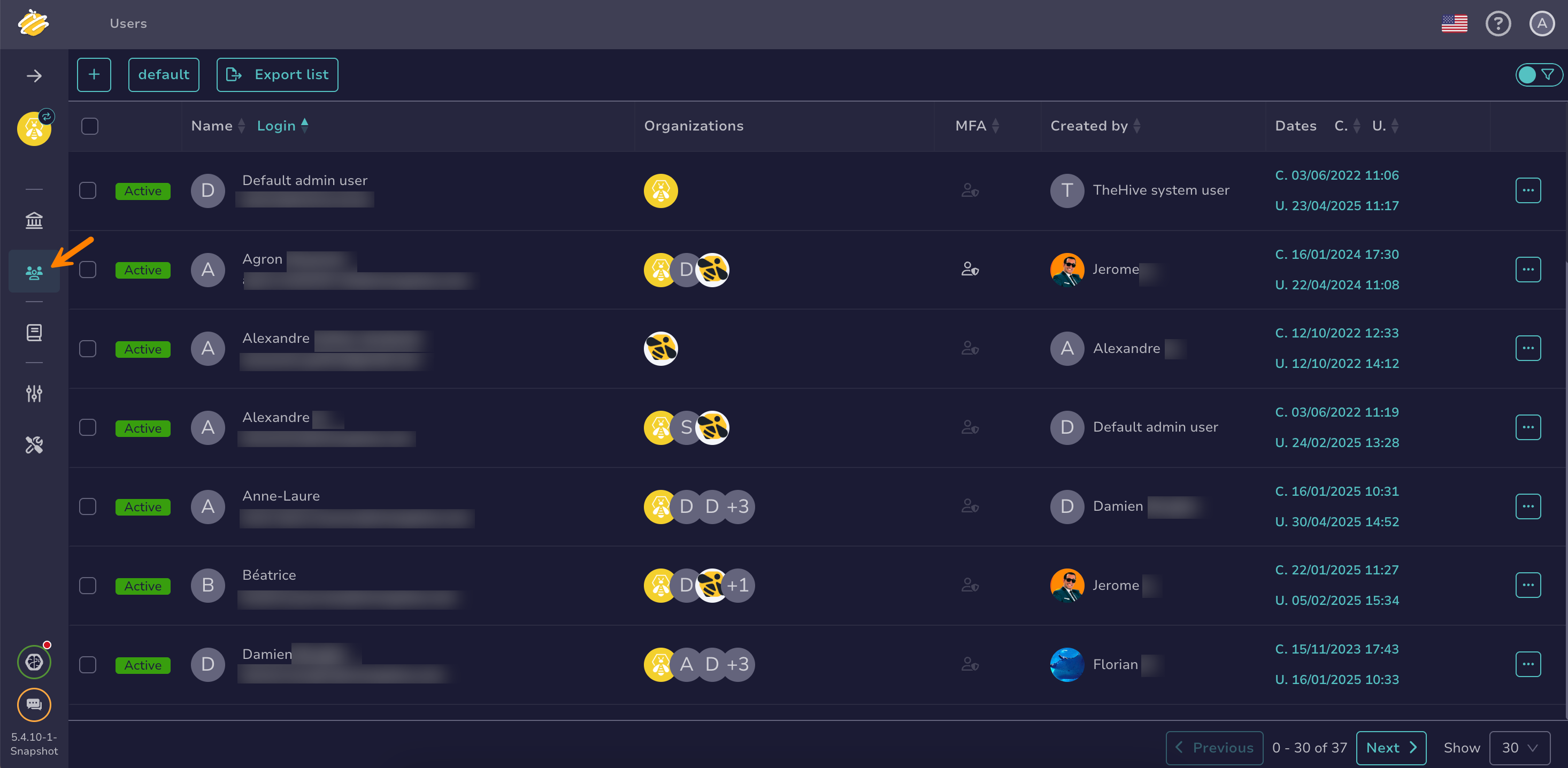
Go to the Users view from the sidebar menu.
-
Select next to the user account you want to lock.
Can't find a user account?
You can apply filters and sorting to help locate user accounts. These preferences can be saved using views.
-
Select Lock.
Lock multiple user accounts in bulk
To lock multiple user accounts, select next to each account you want to lock. Then select and confirm with OK.
-
Select OK.
As an organization administrator#
Lock applies to all organizations
Locking a user account from one organization locks it across all organizations.
-
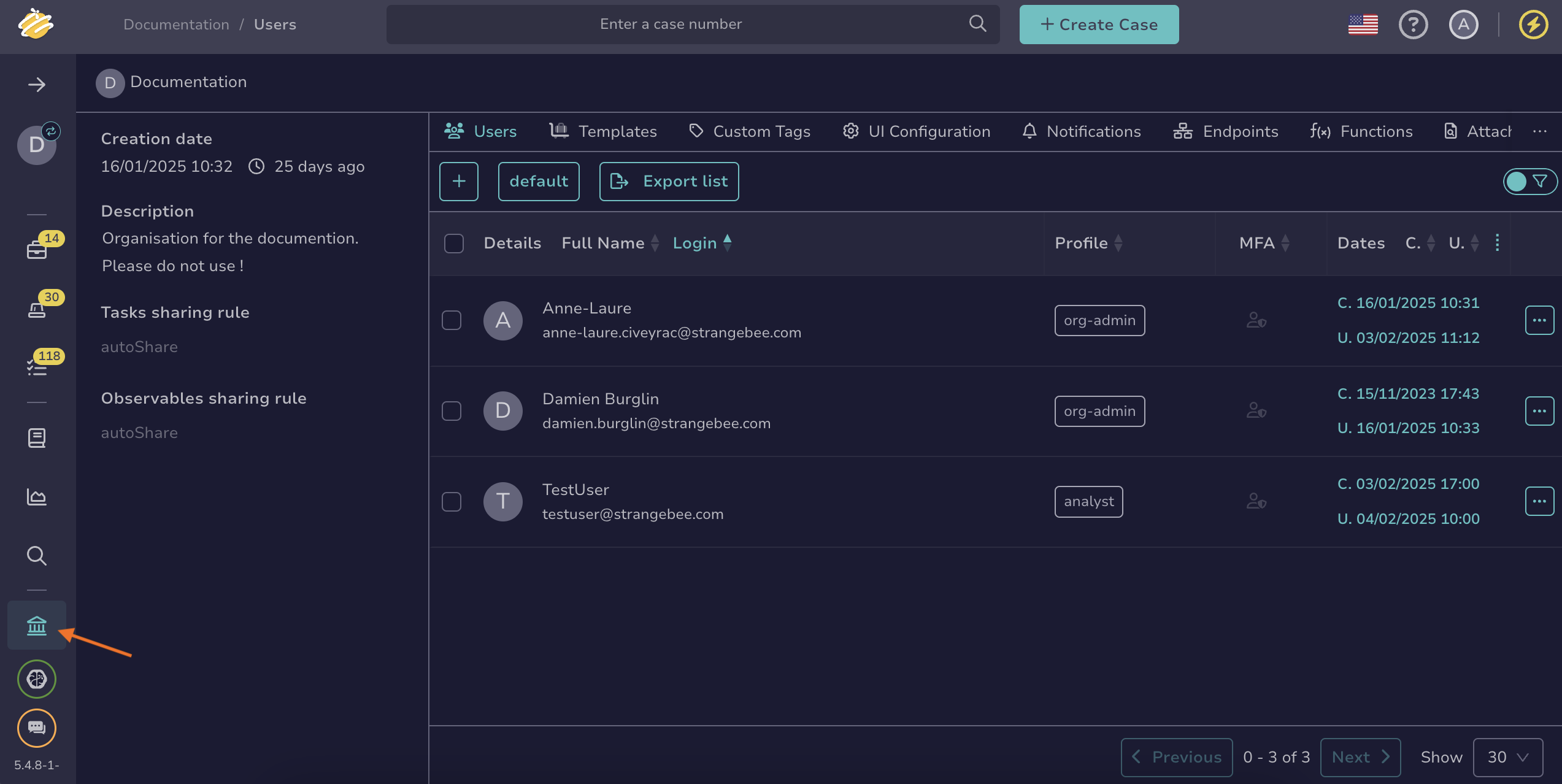
Go to the Organization view from the sidebar menu.
-
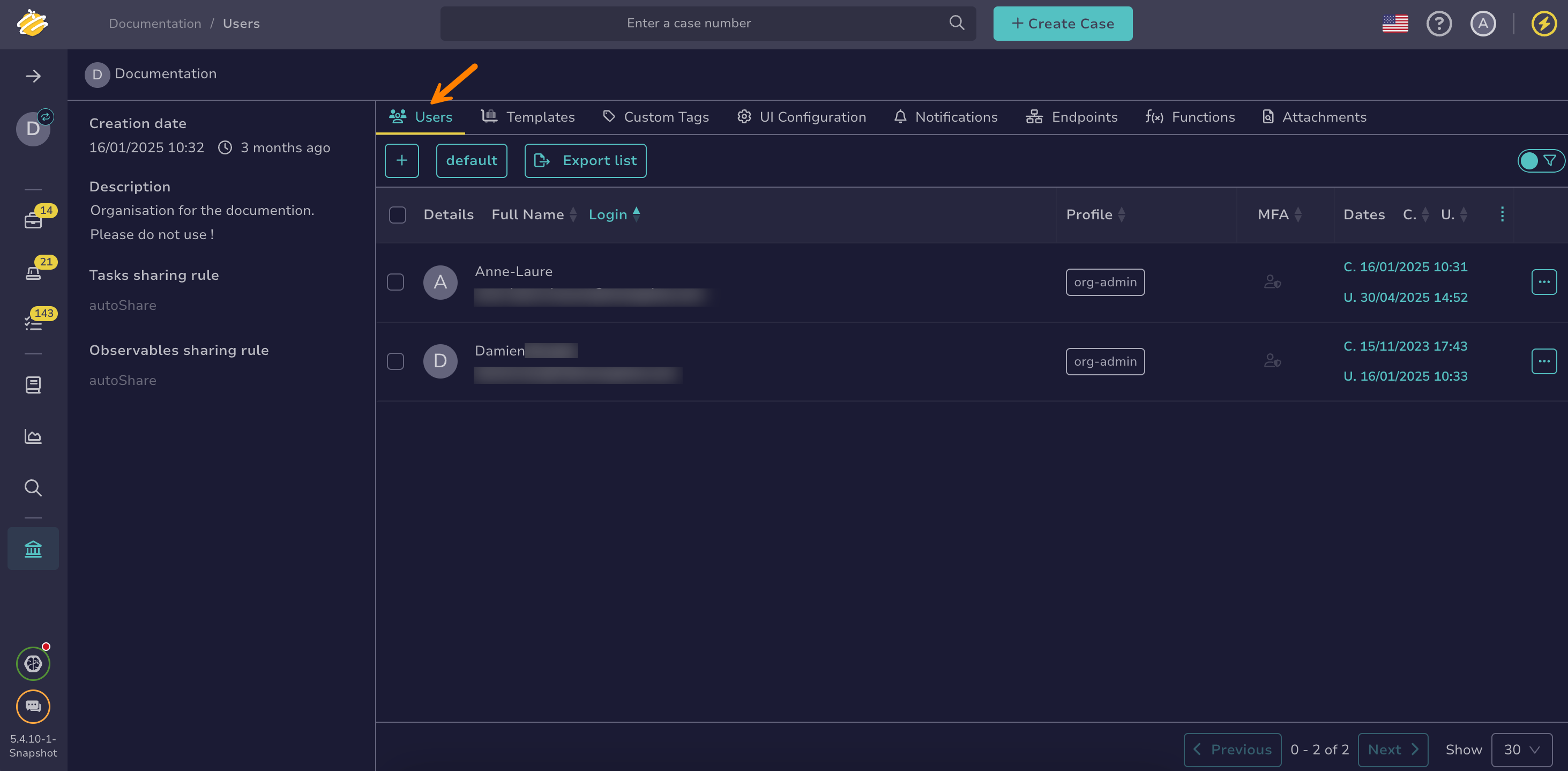
Select the Users tab.
-
Select next to the user account you want to lock.
-
Select Lock.
Lock multiple user accounts in bulk
To lock multiple user accounts, select next to each account you want to lock. Then select and confirm with OK.
-
Select OK.