Manage Global Variables#
6.0 One
Use global variables to share fixed values across all workflows within an organization in TheHive Flow. These values are centrally managed and can't be modified within workflows.
Local variables
If you need variables whose values are set during execution, use local variables. They're scoped to a single workflow and created with a Set local variable transformation node.
Create a global variable#
-
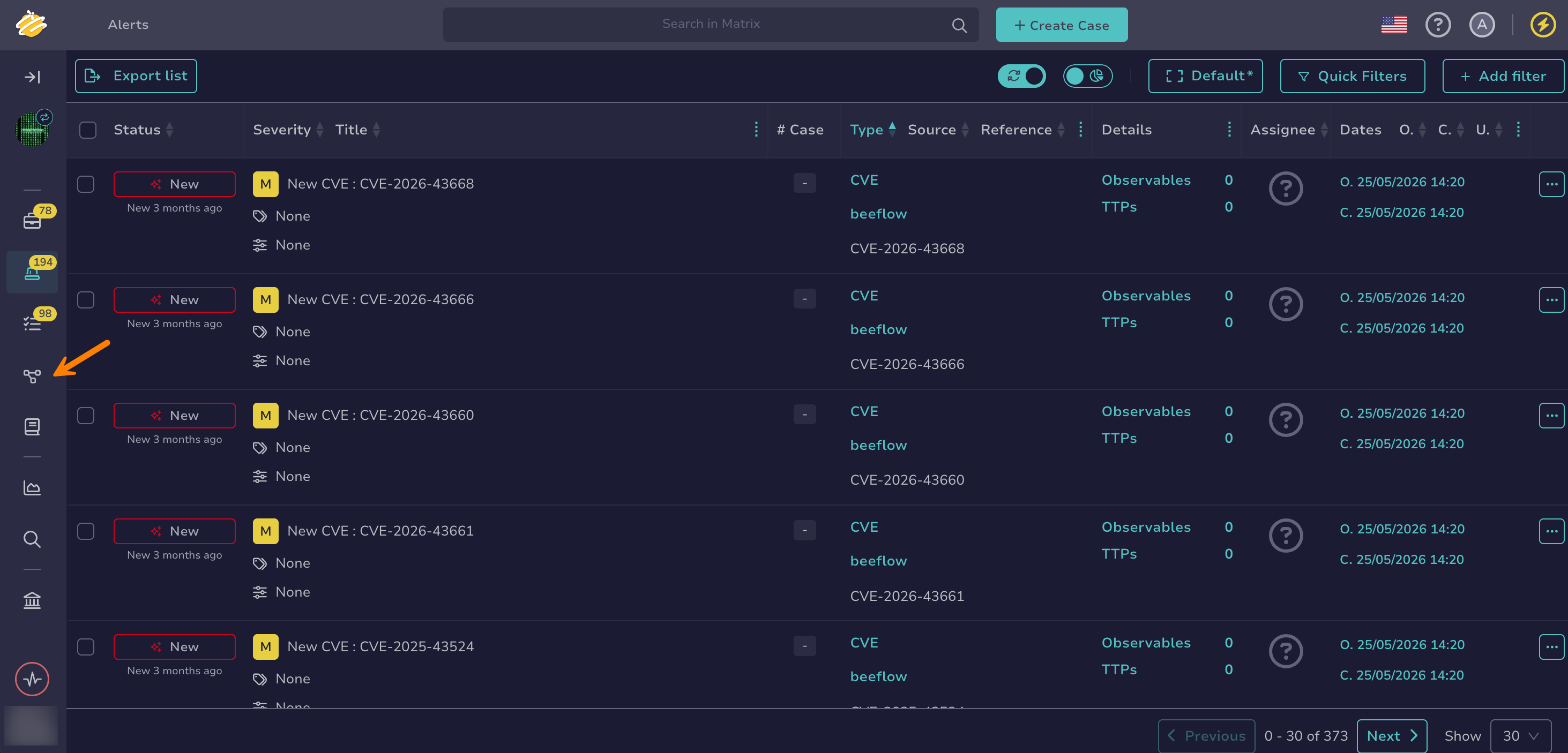
Go to the Flow view from the sidebar menu.
-
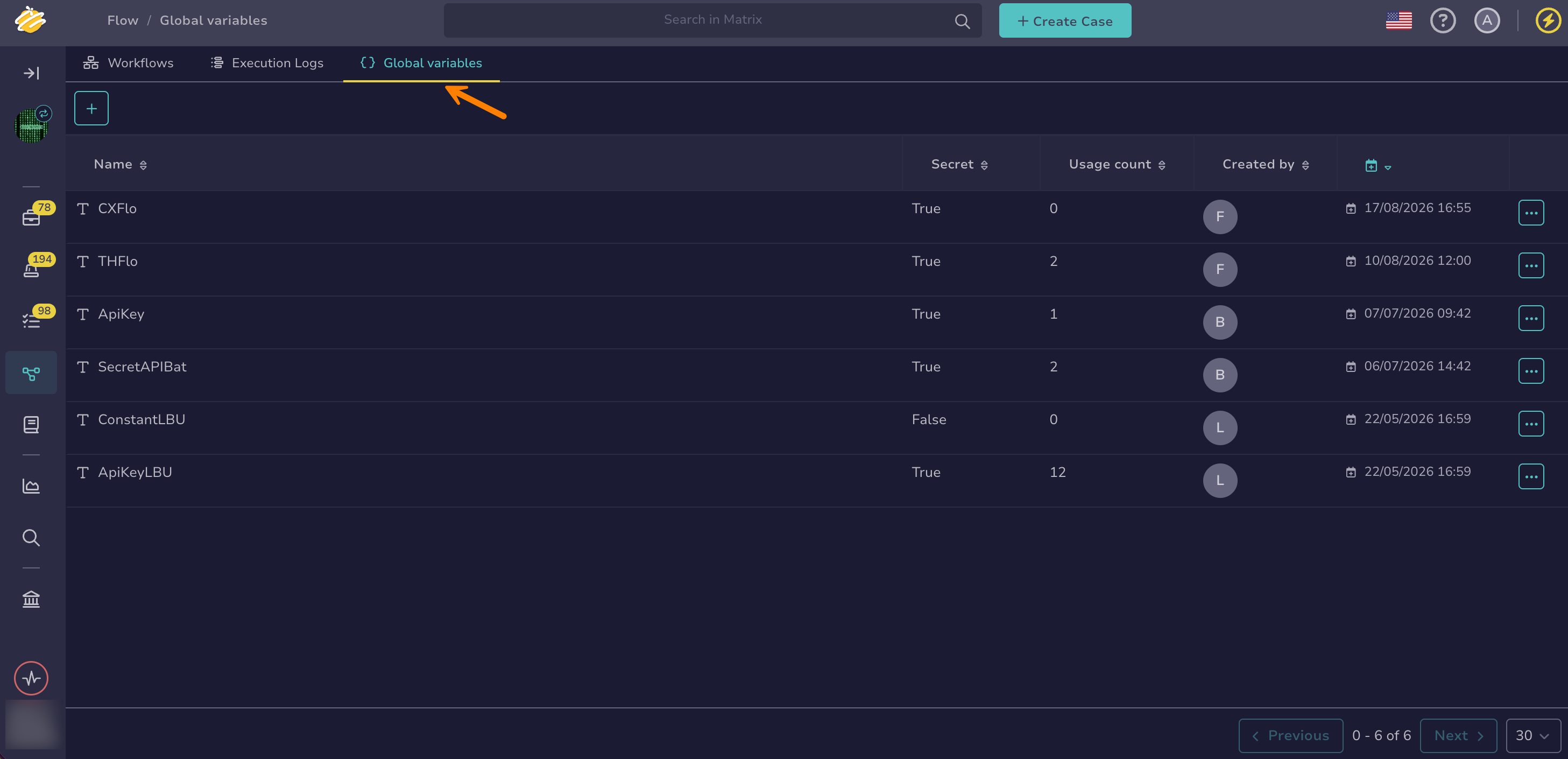
Select the Global variables tab.
-
Select .
-
In the Create a variable drawer, enter the following information:
Fields marked with * are mandatory.
- Name *
A unique name for your global variable within the organization.
- Secret
Turn on this toggle to hide confidential information such as API keys, passwords, or SSL/TLS certificate files. The value of a secret variable is never displayed in the interface and never appears in execution logs or API responses. Leave it off for visible values such as API URLs or team identifiers.
- Value *
The global variable type and its value. The available types are Boolean, JSON, List, Number, and String.
- Description
A description of the global variable.
-
Select Save.
Once created, a global variable can be referenced in any node field that supports variables. Insert the reference with the $var button, or enter $ in the field and start entering the variable name to filter the suggestions. In both cases, select one of the suggestions to insert the reference. You can't enter it in full manually. Inserted references are displayed in the following form:
$global.<variable_name>: For a visible variable$secret.<variable_name>: For a secret variable
Modify a global variable#
Variables used in workflows
While a variable is used in a workflow, you can modify its name, value, and description, but not its type or its secret setting. Renaming a variable automatically updates its references in the workflows that use it. The Usage count column in the Global variables tab shows how many times a variable is used.
-
In the Global variables tab, select the name of the global variable you want to modify.
-
In the Edit a variable drawer, update the fields.
If you turn off the Secret toggle, enter the value again. The existing value stays hidden and isn't carried over to the visible variable.
-
Select Save.
Delete a global variable#
Variables used in workflows
A global variable that's used in a workflow can't be deleted. Remove its references from all workflows first. The Usage count column in the Global variables tab shows how many times a variable is used.
-
In the Global variables tab, select next to the global variable you want to delete.
-
Select Delete.
-
Select OK.