Manage Input and Exit Variables#
6.0 One
Workflow input and exit variables define the interface of a workflow, so it can exchange data with external systems, or with another workflow that calls it through a Subworkflow node.
Input variables can be declared and assigned directly in the Workflow input section when configuring a Webhook trigger, using a jq expression applied to the incoming request. When the workflow is run from a case or alert page, input variables can receive the case or alert identifier. When the workflow is called by a Subworkflow node, input variables receive the values entered in that node. Input variables can also be declared in the workflow settings. Use the settings for a workflow without a Webhook trigger, and to manage input variables for all nodes of the workflow, for example to rename, describe, or delete them. Reference input variables in nodes with the $var button, or by entering $ and selecting the variable from the suggestions. An inserted reference is displayed as $input.<variable_name>. The value each input variable got for a run is displayed in its run summary.
Exit variables are named jq expressions evaluated when the workflow completes. Their values are stored with the run and displayed in its run summary. When the workflow is called by a Subworkflow node, the nodes that follow it in the calling workflow read the exit variables as outputs of that node.
Testing workflows with input variables
Input variables can't be passed when running a workflow manually from the workflow editor. If your workflow relies on input data to run, add a Set local variable node at the beginning with hardcoded test values. A manual run from a case or alert page passes a single input, the entity identifier, assigned to the case_id or alert_id input variable when the workflow declares it.
Create an input or exit variable#
-
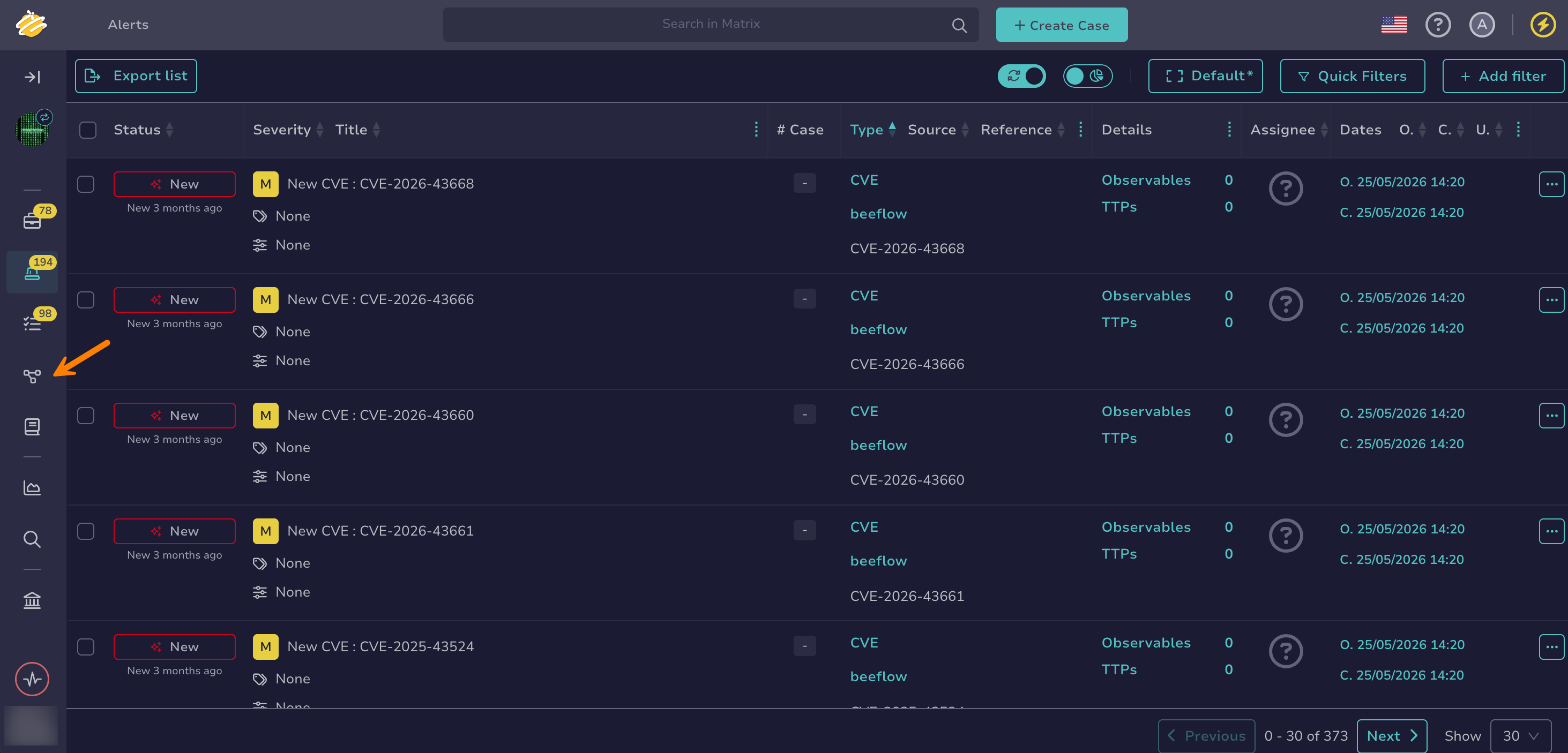
Go to the Flow view from the sidebar menu.
-
Select a workflow from the list.
-
Select , then Settings.
-
Add the variable:
- For an input variable, go to the Input variables section, select , enter a Variable name, select a Type, and enter an optional Description. The name must be unique in the workflow. The available types are String, Number, Boolean, Array, JSON, and Raw. String is the default. Use Raw for a file uploaded with a webhook request. The name
payloadis reserved for the trigger payload and can't be used. - For an exit variable, go to the Output variables section, select , and enter an Output name and a JQ value. In the JQ value field, reference a variable with the $var button, or by entering
$and selecting the variable from the suggestions.
TheHive Flow evaluates the exit variable expression when the workflow completes, so it can reference any variable of the run, including the outputs of the last nodes. An exit variable can't reference a secret global variable. The functions available in expressions are listed in Jq Functions.
Accessing a field from a variable
To access a field, enter
.<field_name>directly after the variable.Exit variable examples
$<node_name>.body._id: Returns the identifier of the case or alert created by a TheHive integration node.$<node_name>.body | map(.data): Returns the values of the observables listed by a TheHive integration node as an array, for example with the Post Query action.$<node_name>.body | map(select(.ioc)) | length: Returns the number of listed observables flagged as indicators of compromise (IOCs).{caseId: $<node_name>.body._id, status: (if $<node_name>.code == 201 then "created" else "failed" end)}: Returns an object combining several outputs.
- For an input variable, go to the Input variables section, select , enter a Variable name, select a Type, and enter an optional Description. The name must be unique in the workflow. The available types are String, Number, Boolean, Array, JSON, and Raw. String is the default. Use Raw for a file uploaded with a webhook request. The name
An input variable has no value until it's assigned. Assign it in the Workflow input section of a Webhook trigger, through a run from a case or alert page, or in the Subworkflow inputs section of a Subworkflow node that calls the workflow.
Delete an input or exit variable#
-
Go to the Flow view from the sidebar menu.
-
Select a workflow from the list.
-
Select , then Settings.
-
In the Input variables or Output variables section, select next to the variable you want to delete.
An input variable that's referenced by a node or assigned a value in a Webhook trigger can't be deleted. Remove those uses first.
Workflows called by a Subworkflow node
Deleting or renaming an input variable of a workflow that other workflows call through a Subworkflow node doesn't update those calling workflows. A calling workflow that assigned a value to that input variable can't run until its node is updated. Deleting or renaming an exit variable breaks the references to it in the calling workflows.