Export or Import a Case Report Template#
6.0 Platinum One
Export a case report template from TheHive to share it with another organization or TheHive instance, or import a case report template to reuse configurations created elsewhere.
Case report templates are exported as .thtp files. A .thtp file is a zip archive containing the template title, description, and definition as JSON, along with the template format version, the TheHive version that produced the file, and the export date. The archive is protected, so open it with TheHive rather than with an archive tool.
Images aren't included in the exported file
A .thtp file doesn't contain the images uploaded to Image widgets. When you import the file into a different TheHive instance, the imported template still references images from the original instance, and these images may not display. Upload the images again in the imported template.
Share case report templates
Contribute case report templates to our public GitHub repository.
Before submitting your pull request, remove any sensitive information.
Each contribution is reviewed by StrangeBee before being published.
Export a case report template#
Share a case report template with another organization or TheHive instance. Exporting doesn't modify the original template.
-
Go to the Organization view from the sidebar menu.
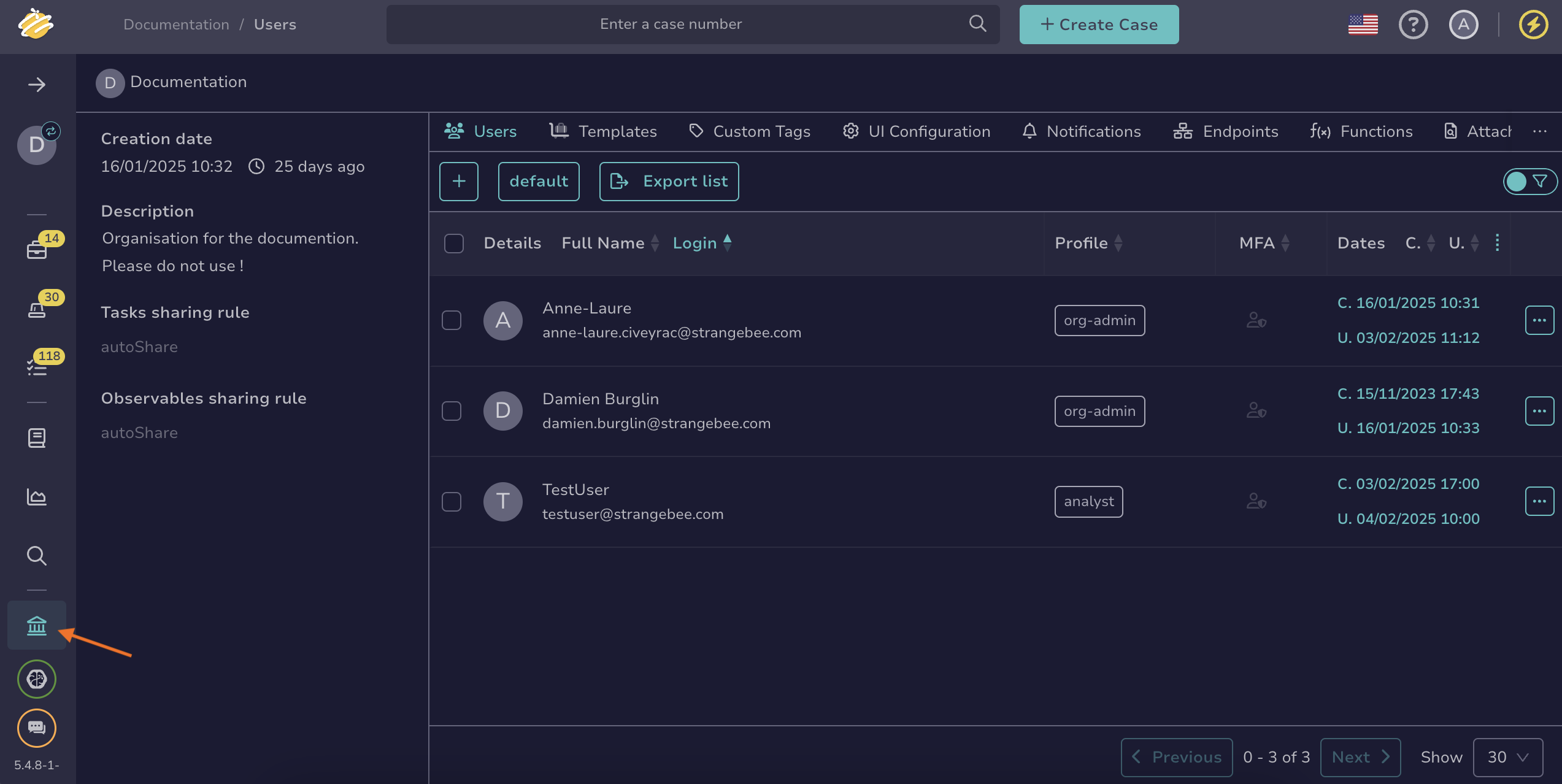
-
Select the Templates tab.
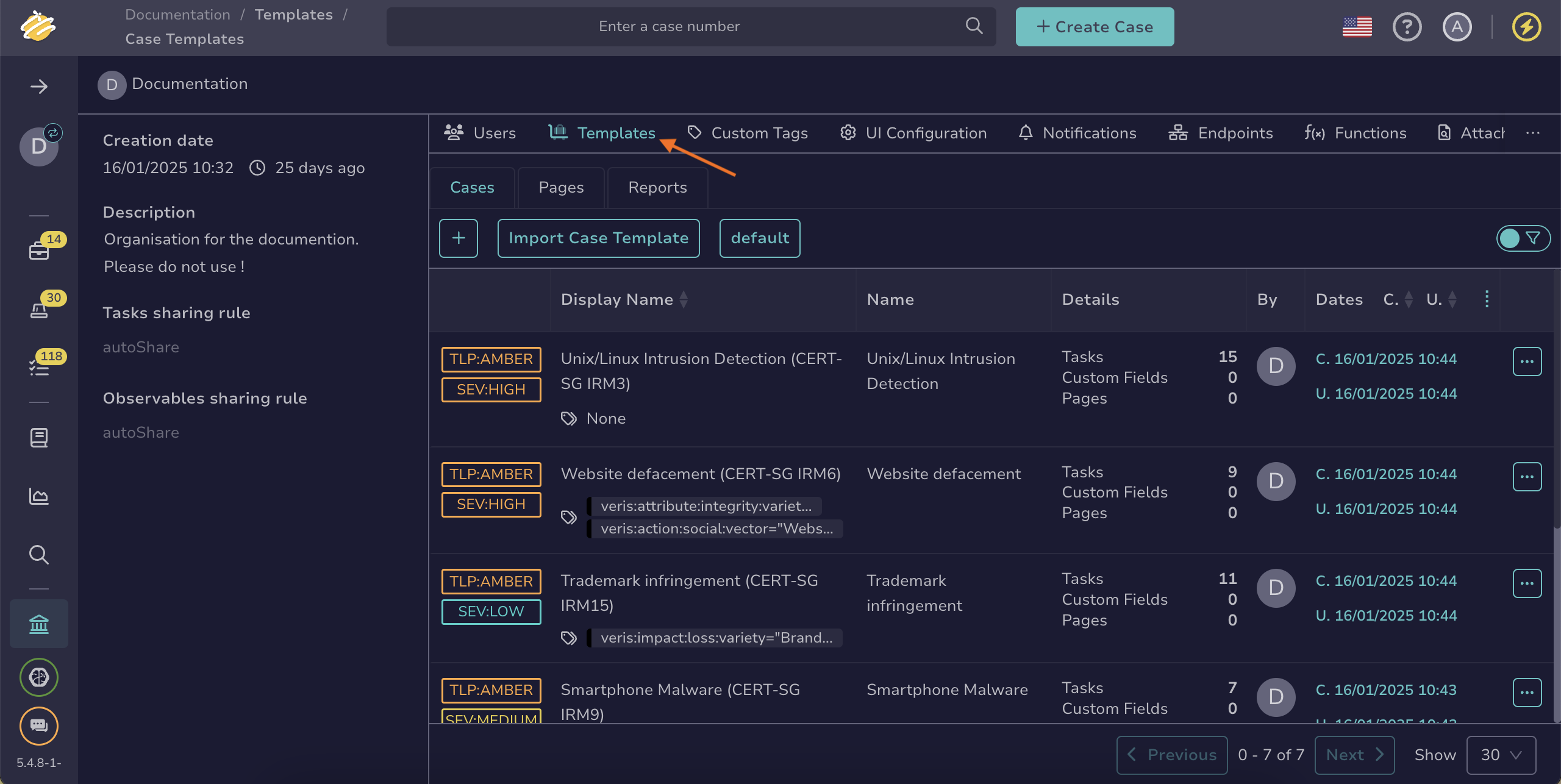
-
Select the Reports tab.
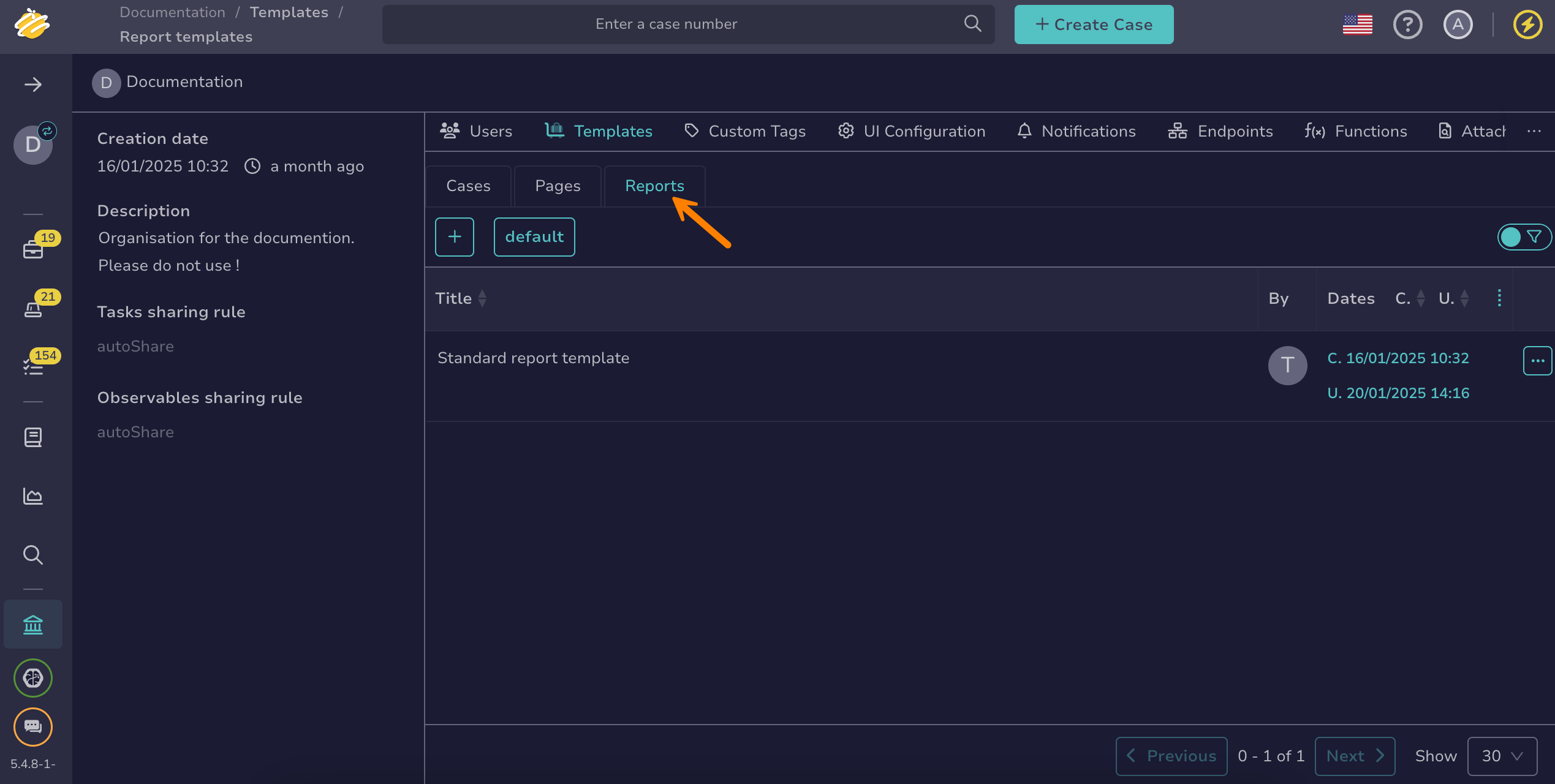
-
Select next to the case report template you want to export.
-
Select Export report template.
Import a case report template#
Use a case report template from another organization or TheHive instance. You can import one file at a time. Importing always creates a new template in the organization.
-
Go to the Organization view from the sidebar menu.
-
Select the Templates tab.
-
Select the Reports tab.
-
Select Import Report Template.
-
In the Importing a Report Template drawer, drop the
.thtpfile directly into the Attachment section or select it from your computer. Use the file you obtained from exporting the case report template. -
Optional: In the Name of report template field, edit the title of the imported template. This field is prefilled from the file name. If left empty, the title stored in the file is used.
-
Select Import report template.