Manually Run a Workflow#
6.0 One
Execute your workflow on demand, regardless of its trigger configuration: from the workflow editor while building it, or from a case or alert page in TheHive.
Prerequisite
You must enable a workflow, and resolve any errors marked with , before you can run it manually.
Testing workflows with input variables
Input variables can't be passed when running a workflow manually from the workflow editor. If your workflow relies on input data to run, add a Set local variable node at the beginning with hardcoded test values. A manual run from a case or alert page passes a single input, the entity identifier, assigned to the case_id or alert_id input variable when the workflow declares it.
Run a workflow from the workflow editor#
-
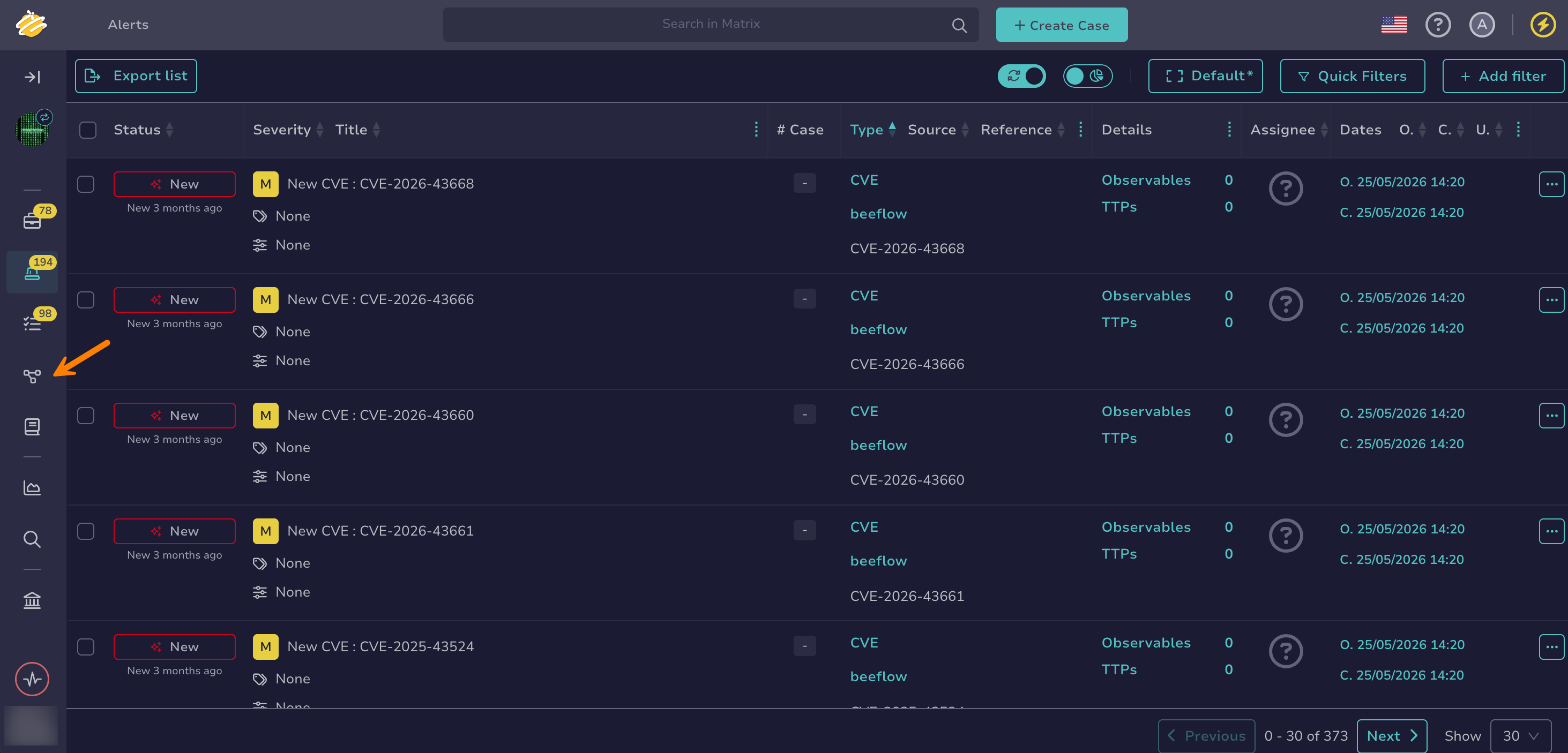
Go to the Flow view from the sidebar menu.
-
Select a workflow.
-
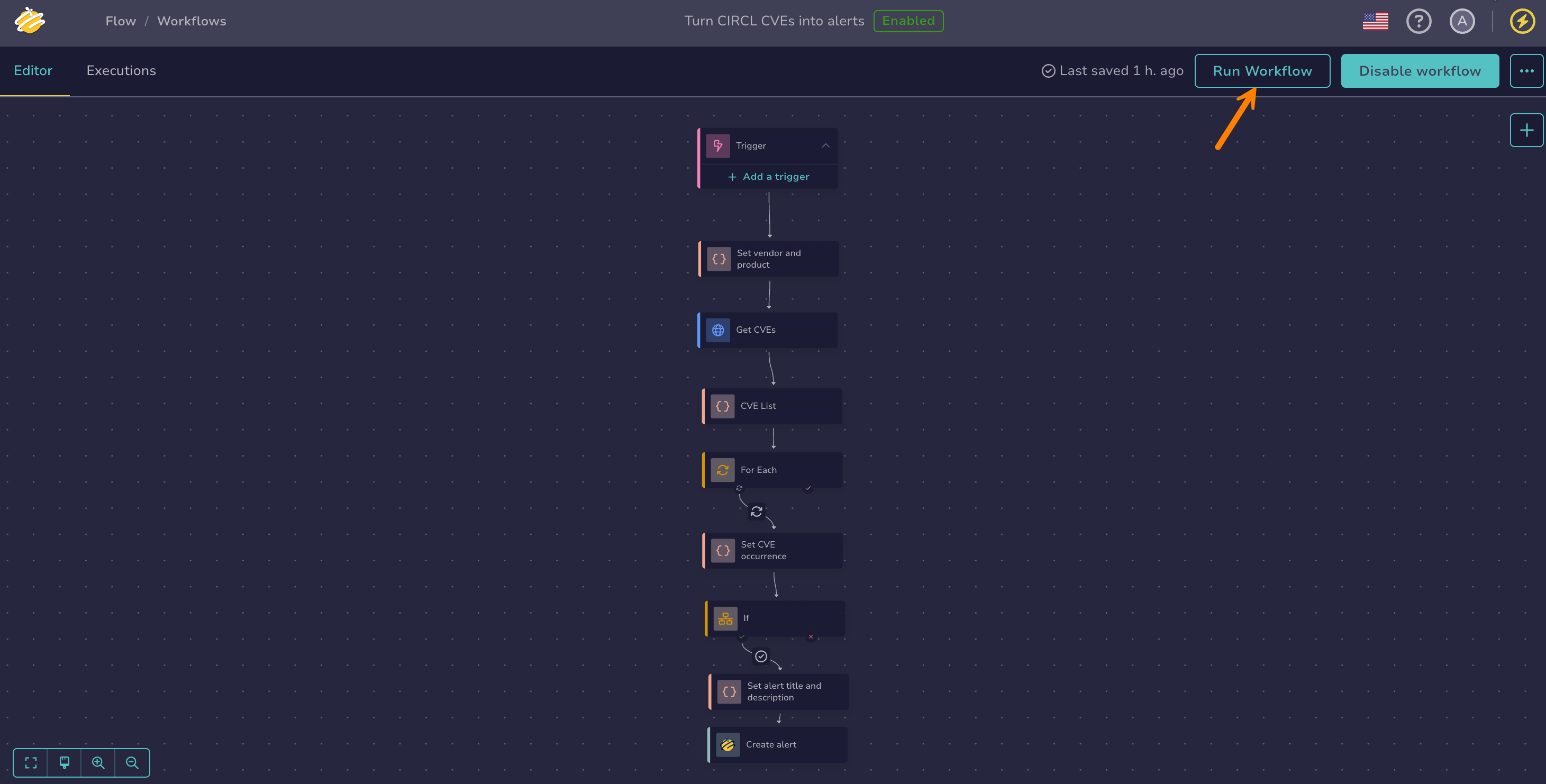
In the workflow editor, select Run workflow.
Run a workflow from a case or alert#
Run a workflow on a specific case or alert from its Automation Center, in the Automations tab.
-
Open a case or an alert.
-
Go to the Automations tab.
-
Select the Workflows tab.
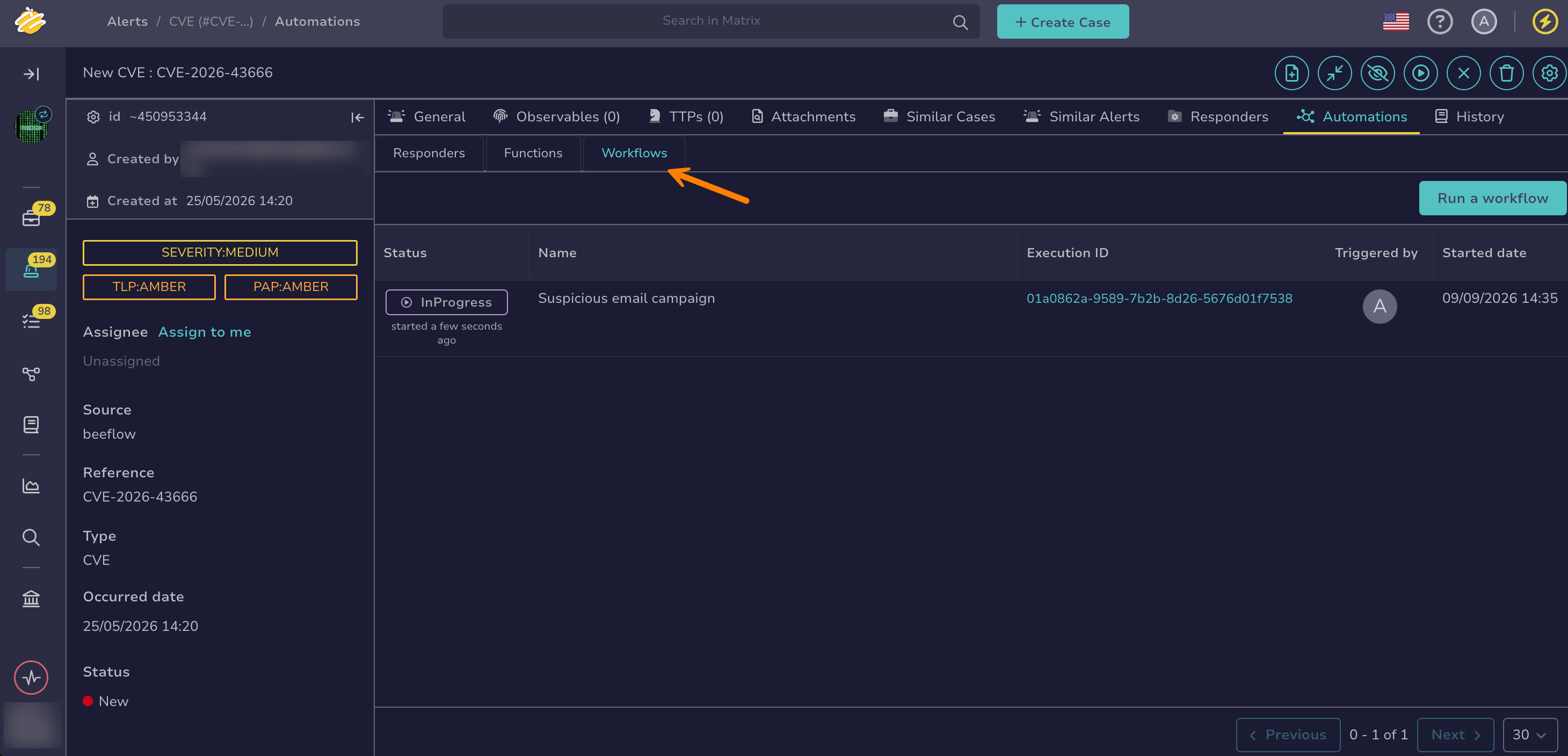
The tab lists the workflow runs already launched on the case or alert.
-
Select Run workflows.
-
Select one or more workflows, then select Launch action(s).
Each selected workflow runs once. TheHive passes the identifier of the case or alert to the run as a variable named case_id or alert_id. The identifier is available in the nodes as $input.payload.case_id or $input.payload.alert_id, through the trigger payload. To reference it as $input.case_id or $input.alert_id instead, declare an input variable with that exact name.