About TheHive Flow#
6.0 One
Security operations involve repetitive and time-sensitive tasks: creating alerts from external events, triaging alerts, enriching observables, and notifying teams. TheHive Flow is the workflow orchestrator integrated with TheHive. It automates these tasks so your team can focus on investigation instead of manual coordination. Using a visual editor, you connect trigger, flow, transformation, action, and integration nodes into automated pipelines that run when events occur.
Relationship to existing automation features
TheHive Flow workflows cover most of the use cases handled by existing automation features in TheHive, including notifications, alert feeders, functions, and Cortex responders. These features remain available and usable on their own. TheHive Flow adds multi-step logic, conditional branching, scheduled execution, and a visual workflow editor, all natively within TheHive, without requiring code or an external tool.
Managing workflows#
Workflows are organized within organizations and displayed in the Flow view. They're shared across the organization and visible to all members with sufficient permissions. There's no personal or user-isolated workspace. You can tag workflows to categorize them, and set their status:
- Enabled: Runs automatically when triggered, and on demand from the workflow editor or a case or alert page.
- Disabled: Never runs. Its triggers are ignored and manual runs are unavailable, so it can be edited without affecting production. A Subworkflow node calling it fails. Turning off a workflow doesn't delete it. Its configuration is fully preserved, so turning it off is the recommended way to pause a workflow during maintenance or testing.
No versioning
There's no workflow versioning. Any modification is applied immediately to the active workflow. Duplicate a workflow before making significant changes. To keep a history, export your workflows and version them in a Git repository.
Workflows from other TheHive instances or organizations can be imported. To start from a working example instead of building from scratch, import one of the ready-made workflow templates covering common security automation scenarios.
Workflow components#
Every workflow follows the same structure: it starts with a trigger, optionally passes through flow and transformation nodes to route and reshape data, and ends with action or integration nodes that produce results.
- Trigger: Starts the workflow when an event occurs. Every workflow has exactly one trigger node.
- Flow: Controls execution paths by branching on conditions, looping over lists, pausing, or calling another workflow.
- Transformation: Processes data between steps by setting local variables or running Python or JavaScript scripts.
- Action: Performs generic operations such as sending HTTP requests, emails, or chat messages, running Cortex analyzers and responders, or calling an LLM.
- Integration: Performs operations in TheHive or a third-party product through its API.
Each node receives input from the previous step and passes output to the next. Outputs are JSON values, so they can be reused anywhere downstream as output variables and read or reshaped with jq expressions.
Example: Automated alert creation and triage
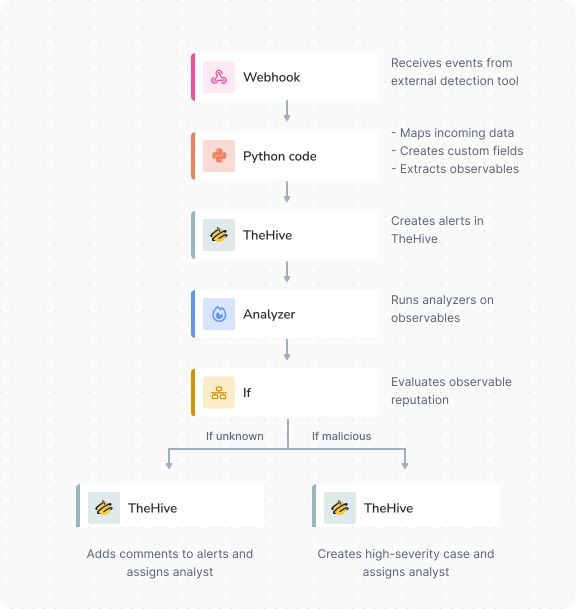
Trigger nodes#
Every workflow requires a trigger node. TheHive automatically creates one when you create a workflow. Only one trigger node exists per workflow, but multiple triggers can be configured within this node to provide different entry points for workflow execution. Multiple triggers work as OR conditions: any one of them independently starts the workflow.
Available triggers are:
- Webhook: Listens for incoming HTTP requests from external systems or TheHive itself, and automatically starts the workflow when the webhook URL receives a request. Accepts the
GET,POST,PUT,DELETE,PATCH,HEAD, andOPTIONSmethods unless you restrict the accepted methods. The webhook URL points at TheHive Flow, not at TheHive, and is reachable without signing in to TheHive, so the trigger carries its own authentication method. - Scheduler: Starts the workflow on a recurring schedule. A trigger node can carry multiple scheduler blocks, each running independently on its own schedule.
Calling a workflow from another workflow
To call a workflow from another workflow of the same organization, use a Subworkflow flow node. To start a workflow of another organization, use an HTTP request action node to send a request to the webhook URL of that workflow.
Regardless of trigger configuration, enabled workflows can always be run manually from the workflow editor or from a case or alert page in TheHive.
Flow nodes#
Flow nodes control how workflows branch, loop, process multiple items, pause, or call another workflow.
Available flows are:
- For each: Iterates over each item in an array or object that matches a jq expression, and executes the same sequence of nodes for each entry. Supports sequential or parallel execution modes. In sequential mode, the loop stops on the first error. In parallel mode, iterations run concurrently up to a configurable limit. The first failure cancels the remaining iterations. The node waits for the running ones to stop, then reports the errors from all failed iterations together.
- If: Evaluates a jq expression and directs execution down two branches based on the boolean result,
trueorfalse. The node produces an output after one branch finishes, so the workflow can continue after the conditional logic. - Sleep: Pauses the execution path for a specified duration, then continues with the next node.
- Subworkflow: Calls another workflow of the same organization and waits for it to finish. Passes values to the input variables of the called workflow, along with the trigger payload of the calling workflow. Returns the exit variables of the called workflow as outputs.
An execution path ends when it reaches a node with no next step.
Transformation nodes#
Transformation nodes process or manipulate data within workflows. They perform custom operations that modify, extract, or format information as it moves through the workflow.
Available transformations are:
- Set local variable: Creates local variables. Returns the assigned value as an output.
- Python code: Executes Python scripts within the workflow. Returns the script output, exit code, and any variables you expose with
flow.set()as outputs. - JavaScript code: Executes JavaScript scripts within the workflow. Returns the script output, exit code, and any variables you expose with
flow.set()as outputs.
Action nodes#
Action nodes perform operations that interact with TheHive or external systems. They change the environment or trigger downstream processes.
Available actions are:
- HTTP request: Sends HTTP requests to external APIs, or to TheHive API for endpoints the TheHive integration node doesn't cover, using any standard HTTP method. Returns the response body, status code, and headers as outputs.
- Send email: Sends emails using the SMTP configuration from TheHive.
- Analyzer: Triggers Cortex analyzers on observables. Lists analyzers available across all configured Cortex instances for the organization, automatically filtered by observable type. If the Traffic Light Protocol (TLP) or Permissible Actions Protocol (PAP) level of the observable isn't compatible with the analyzer, Cortex returns an error at execution. Returns analyzer reports as outputs.
- Responder: Triggers Cortex responders on alerts, cases, observables, tasks, or task logs. Lists responders available across all configured Cortex instances for the organization, automatically filtered by entity type. If the TLP or PAP level of the entity isn't compatible with the responder, Cortex returns an error at execution. Returns responder execution reports as outputs.
- AI: Sends a message to a large language model (LLM) using one of the LLM providers configured in TheHive by an administrator, and returns its response, optionally constrained to a structured output schema. Returns the response text, structured result, finish reason, and token usage as outputs.
Integration nodes#
Integration nodes perform operations in TheHive or third-party products. Each integration node targets one product API and exposes its operations as dedicated actions selected within the node. Integrations tagged Beta were built from the provider's API documentation, not tested against a live environment: check them before using them in production. If you have access to a live environment, help validate the integration and share your feedback with the StrangeBee Support team.
Available integrations are:
- TheHive: Performs operations in TheHive through TheHive API, such as creating, updating, querying, or deleting cases, alerts, tasks, and observables, managing comments and task logs, or starting a Cortex job. Returns the response body, status code, and headers as outputs. To perform an operation this node doesn't manage, use the HTTP request action node instead.
- Splunk: Performs operations through the Splunk REST API, such as creating and following search jobs, running searches, listing indexes and fired alerts, submitting events, and updating Splunk Enterprise Security findings and investigations. Returns the response body, status code, and headers as outputs.
- Microsoft Defender for Endpoint: Performs operations through the Microsoft Defender for Endpoint API, such as listing, retrieving, and updating alerts, running response actions on devices, and creating indicators. Returns the response body, status code, and headers as outputs.
- Microsoft Defender (Graph Security API): Performs operations through the Microsoft Graph security API, such as listing, retrieving, and updating Microsoft Defender XDR alerts and incidents. Returns the response body, status code, and headers as outputs.
- Microsoft Entra ID: Performs operations through the Microsoft Graph API, such as looking up users, sign-ins, audit logs, devices, and risk detections, and taking account actions such as Disable User or Force Password Reset. Returns the response body, status code, and headers as outputs.
- Microsoft Sentinel: Performs operations through the Microsoft Sentinel REST API, such as listing, retrieving, and updating incidents, managing incident comments, and listing or writing watchlists. Returns the response body, status code, and headers as outputs.
- Recorded Future: Performs operations through the Recorded Future API, such as enriching and triaging indicators in bulk, looking up domains, IP addresses, hashes, and URLs, and searching analyst notes and threat maps. Returns the response body, status code, and headers as outputs.
- VirusTotal: Performs operations through the VirusTotal API, such as scanning URLs and files, and retrieving domain, IP address, file, and analysis reports. Returns the response body, status code, and headers as outputs.
- Beta CrowdStrike Falcon: Performs operations through the CrowdStrike Falcon APIs, such as querying devices and vulnerabilities, running response actions on hosts, querying and updating alerts, and looking up threat intelligence indicators. It also manages custom indicators of compromise (IOCs) and detonates file samples in the Falcon sandbox. Returns the response body, status code, and headers as outputs.
- Elastic Security: Performs operations through the Elasticsearch API, such as searching and indexing documents, running ES|QL queries, and listing Elastic Security detection alerts. Returns the response body, status code, and headers as outputs.
- HarfangLab EDR: Performs operations through the HarfangLab API, such as searching and isolating endpoints, managing alerts, running jobs on agents, searching telemetry, managing IOC rules, and listing Sigma rules. Returns the response body, status code, and headers as outputs.
- Jira Cloud: Performs operations through the Jira Cloud platform REST API, such as creating, editing, transitioning, and searching issues, managing comments, attachments, worklogs, watchers, and votes, and browsing projects and issue metadata. Returns the response body, status code, and headers as outputs.
- Slack: Performs operations through the Slack Web API, such as posting, updating, and deleting messages, managing reactions, reading threads and channel history, and looking up channels and users. Returns the response body, status code, and headers as outputs.
- Beta Microsoft Teams: Performs operations through the Microsoft Graph API, such as sending, replying to, updating, and deleting channel messages, and sending chat messages. It also creates chats and channels, adds team and channel members, and lists teams, channels, and messages. Returns the response body, status code, and headers as outputs.
- ServiceNow: Performs operations through the ServiceNow Table and Attachment APIs, such as creating and updating incidents and change requests, and searching configuration items, users, and user groups. It also manages record attachments, and reads and writes records in any table. Returns the response body, status code, and headers as outputs.
- OpenCTI: Performs operations through the OpenCTI GraphQL and TAXII 2.1 APIs, such as searching entities, observables, indicators, and relationships, and creating observables, indicators, reports, incidents, relationships, and sightings. It also manages labels, markings, and notes, and requests enrichment from connectors. Returns the response body, status code, and headers as outputs.
- Wazuh: Performs operations through the Wazuh server API, such as listing, adding, restarting, and deleting agents, and running active responses and file integrity monitoring scans. It also reads security configuration assessment results, rules, CDB lists, and manager logs. Returns the response body, status code, and headers as outputs.
Variables#
Workflows in TheHive Flow support seven types of variables:
| Type | Scope | Displayed reference | Description |
|---|---|---|---|
| Input variables | Single workflow | $input.<field_name> |
Input values passed into the workflow when it starts. Declare and assign them in the Workflow input section when configuring a Webhook trigger, with a jq expression applied to the incoming request. A Subworkflow node in another workflow can also assign them when it calls the workflow. Use the workflow settings to manage input variables for all nodes of the workflow, for example to rename, describe, or delete them. A run from a case or alert page assigns the entity identifier to the case_id or alert_id input variable when the workflow declares it. |
| Trigger payload | Single workflow | $input.payload |
Built-in variable automatically available in every run, carrying the data received by the trigger that started the run, such as the JSON body, headers, and query parameters of a webhook request, or the case or alert identifier of a run from a case or alert page. Requires no declaration and no assignment. See Access the Trigger Payload for the available fields. |
| Exit variables | Single workflow | — | Output values the workflow computes when it completes, stored with the run. Declared in workflow settings as named jq expressions that are evaluated at the end of the run. When the workflow is called by a Subworkflow node, they're returned to the calling workflow as outputs of that node. |
| Local variables | Single workflow | $<node_name>.<field_name> |
User-defined values scoped to a single workflow run, created during execution with a Set local variable transformation node. |
| Output variables | Single workflow | $<node_name>.<output_name> |
Values a node produces automatically when it runs, available to every later node. The available outputs depend on the node type. See each node's configuration page for details. In a For each loop, the current item and its key are available as the item and idx outputs of the loop node, within the Loop branch only. |
| Loop output variables | Single workflow | $<node_name>.<variable_name> |
Values declared on a For each node to collect results across iterations. Each is a named jq expression evaluated after every iteration, and the values are aggregated across all iterations and available in the nodes that follow the loop. |
| Global variables | Organization | Visible: $global.<variable_name> / Secret: $secret.<variable_name> |
Values defined once at the organization level and shared across all workflows. Managed from the Global variables tab and can't be modified within workflows. They can be visible or secret. Secret variables hold sensitive data such as API keys, passwords, or SSL/TLS certificates. Their values are never displayed in the interface and never appear in execution logs or API responses. |
Insert variables with the $var button, or enter $ in a field and start entering the variable name to filter the suggestions. In both cases, select one of the suggestions to insert the reference. It can't be entered in full manually.
An inserted variable is highlighted in the field. How you read a nested field from it depends on its type:
- A direct variable, highlighted in green: Appears in the condition of an If node, the Field to iterate over and the loop output variables of a For each node, and the exit variables of a workflow. Read a nested field by entering
.<field_name>right after the reference, directly in the field. - A jq expression, highlighted in blue: The variable wrapped in a jq expression. To read a nested field or transform the value, select the expression and edit the jq inside it. The available functions are listed in Jq Functions. Always add fields inside the expression itself. Text entered after the expression is treated as literal text, not as part of the expression, and the node fails at execution with a type mismatch. You can also select the + button to write the variable and the field together in one step.
Files#
Workflows pass JSON values between nodes. Some values don't fit that model well: a large API response, a binary download, or a document uploaded to a webhook. TheHive Flow stores these values as files and passes a file reference between nodes instead of the content itself. In most workflows, this is invisible: reading a variable returns its value whether it's stored inline or as a file.
A value is stored as a file in the following cases:
- Large node outputs: By default, any node output whose content reaches 1 MiB is automatically stored as a file. Below that size, the value is stored inline.
- Binary or multipart HTTP responses: An HTTP request node response body that isn't valid text is stored as a file regardless of its size. Parts of a
multipart/*response body that are large or not JSON are stored as files too. - Files uploaded to a webhook: A file sent with the HTTP request that triggers a Webhook trigger is stored as a file. Declare an input variable of type Raw in the workflow settings, then assign it with
$request.files.<field>in the Workflow input section of the trigger, so that its metadata is available in the variable suggestions. - Files written by code nodes: A file registered with
flow.set_file_from_path()in a Python code or JavaScript code node.
Stored files are capped at 25 MiB by default. A value above that limit is rejected.
Reading a variable whose value is stored as a file works the same way as reading any other variable, within a size limit:
- If the file content is JSON and doesn't exceed 1.5 MiB, the default limit, referencing the variable returns its content transparently. Nested fields can be read as usual, for example
$<node_name>.body.<field_name>. - If the file content is larger than 1.5 MiB or isn't JSON, referencing the variable returns the file reference itself, a small object describing the file, instead of the content. In that case, read the file in a code node with
flow.get_file_path(). You can also forward the reference as is to a node that accepts files, such as the Multipart parts field of an HTTP request node.
File metadata#
Every value stored as a file exposes its metadata through the read-only $files namespace, which mirrors the node outputs and input variables:
$files.<node_name>.<output_name>: Metadata of a node output stored as a file.$files.input.<field_name>: Metadata of an input variable stored as a file.
The metadata contains the following fields:
| Field | Type | Description |
|---|---|---|
name |
string | The file name. |
size |
number | The file size in bytes. |
content_type |
string | The MIME type of the file content. |
sha256sum |
string | The SHA-256 checksum of the file content. |
created_at |
string | When the file was stored. |
created_by |
string | The node that produced the file. |
The $files namespace never holds file content. Reading content goes through the regular variable reference, as described above.
In the variable suggestions, these metadata references appear in a dedicated Files group. The group lists an entry for every output that could be stored as a file. TheHive Flow decides whether to store a value as a file only when the workflow runs, based on the size and format of the real value.
Files entries resolve to nothing for inline values
A $files reference returns metadata only when the value is stored as a file. For a value stored inline, the common case for small JSON, the same reference resolves to nothing. To read the value itself, always pick the suggestion from the node's own group, not from the Files group. The exception is a field that takes a file, such as the File field of an integration action: there, both groups insert the file itself.
Timeout, retry, and backoff configuration#
-
A timeout defines the maximum duration an operation is allowed to run before it's automatically stopped and marked as timed out. Timeouts can be configured at both the workflow level and the node level. When both levels define a timeout, the shortest duration applies.
-
A retry defines the number of times a failed node execution is attempted again. A retry delay specifies the wait time between retry attempts. Without a delay, retries run 1 second apart by default. Retries can be configured only at the node level.
-
A backoff defines the coefficient applied to the retry delay to increase the wait time after each failed attempt. Backoff can be configured only at the node level.
Execution mode#
When several branches converge on the same node, its execution mode controls whether the node runs for each branch or once for all of them:
- Execute once per branch: The node runs once for each incoming branch. This is the default when the execution mode isn't configured.
- Wait for all branches: The node waits for all incoming branches to complete, then runs once.
The execution mode is configured in the Add options of the node, under Execution configuration. It's available on most action, integration, and transformation nodes.
Execution tracking#
Executions are asynchronous: triggering a workflow doesn't block TheHive interface.
Each workflow execution generates an execution record that captures the status of the workflow and each of its nodes. Execution logs are available in three places:
- The Execution Logs tab in the Flow view lists the executions of every workflow in the organization for the configured retention period. Use it to spot failures and open a specific run.
- The Executions tab inside a workflow shows the runs of that workflow in detail. Select a node to display its start and end dates, duration, status, and input and output data.
- The Automations tab of a case or alert in TheHive lists the runs launched on that case or alert.
Permissions#
- Only users with the
manageOrchestrator/readWorkflowspermission can access the Flow view and see workflows. - Only users with the
manageOrchestrator/writeWorkflowspermission can create, modify, or run workflows in TheHive Flow. - Only users with the
manageOrchestrator/deleteWorkflowspermission can delete workflows in TheHive Flow. - Only users with the
manageOrchestrator/readVariablespermission can access the Global variables tab and see global variables. - Only users with the
manageOrchestrator/writeVariablespermission can create or modify global variables in TheHive Flow. - Only users with the
manageOrchestrator/deleteVariablespermission can delete global variables in TheHive Flow.
The Flow entry in the sidebar, and the Workflows and Execution Logs tabs, require the manageOrchestrator/readWorkflows permission.