Manage Entry and Exit Variables#
6.0 One
Workflow entry and exit variables define the interface of a workflow, allowing it to exchange data with external systems or callers. Entry variables are assigned from the webhook payload using a jq expression in the Input mapping section when configuring a Webhook trigger, or receive the case or alert identifier when the workflow is run from a case or alert page. They're referenced in nodes with the $var button, or by typing $ and selecting the variable from the suggestions. An inserted reference is displayed as $input.<variable_name>.
Testing workflows with entry variables
Entry variables can't be passed when running a workflow manually from the workflow editor. If your workflow relies on input data to run, add a Set local variable node at the beginning with hardcoded test values. A manual run from a case or alert page passes a single input, the entity identifier, assigned to the case_id or alert_id entry variable when the workflow declares it.
Create an entry or exit variable#
-
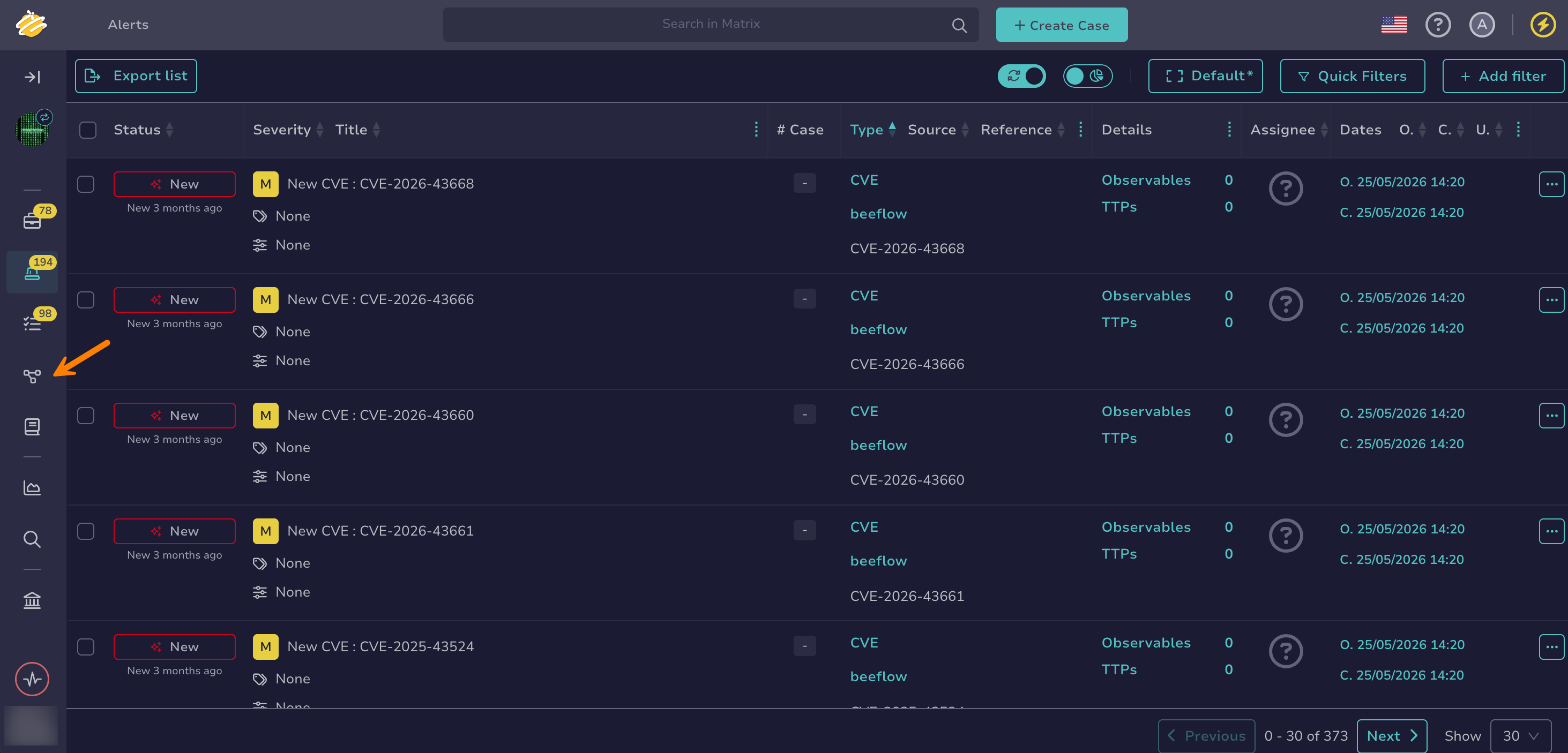
Go to the Flow view from the sidebar menu.
-
Select a workflow from the list.
-
Select , then Settings.
-
Go to the Input variables or Output variables section and add your variables and their respective types.
The name
payloadis reserved for the trigger payload and can't be used for an entry variable.
An entry variable has no value until it's assigned. Assign it in the input mapping of a Webhook trigger, or through a run from a case or alert page.
Delete an entry or exit variable#
-
Go to the Flow view from the sidebar menu.
-
Select a workflow from the list.
-
Select , then Settings.
-
In the Input variables or Output variables section, select next to the variable you want to delete.