Configure a Transformation Node#
6.0 One
Transformation nodes process or manipulate data within workflows in TheHive Flow. Use them to modify, extract, or format information as it moves through the workflow.
Configure a Set local variable node#
A Set local variable node creates one or more local variables during workflow execution. It doesn't modify existing ones. If two nodes declare a variable with the same name, both coexist and are each referenced by their node name. Variables accumulate in the workflow context as execution progresses.
To update a value, add a new Set local variable node downstream with the desired variable name, and reference the earlier value.
Global variables
To reuse the same values across multiple workflows, create global variables from the Global variables tab in the Flow view. These values are defined at the organization level and can't be modified within workflows.
-
Go to the Flow view from the sidebar menu.
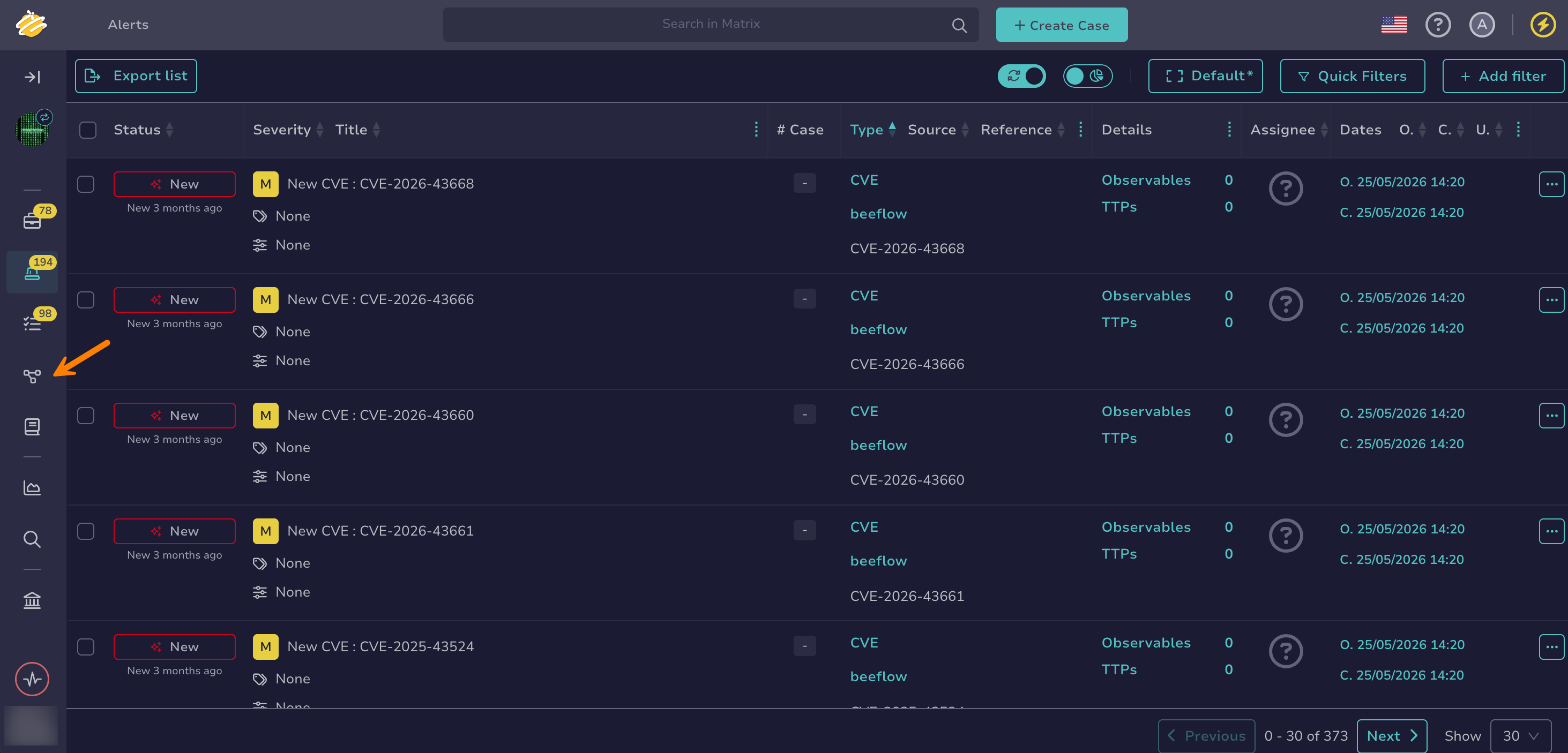
-
Select a workflow from the list.
-
Drag the previous node connector to an empty area of the canvas.
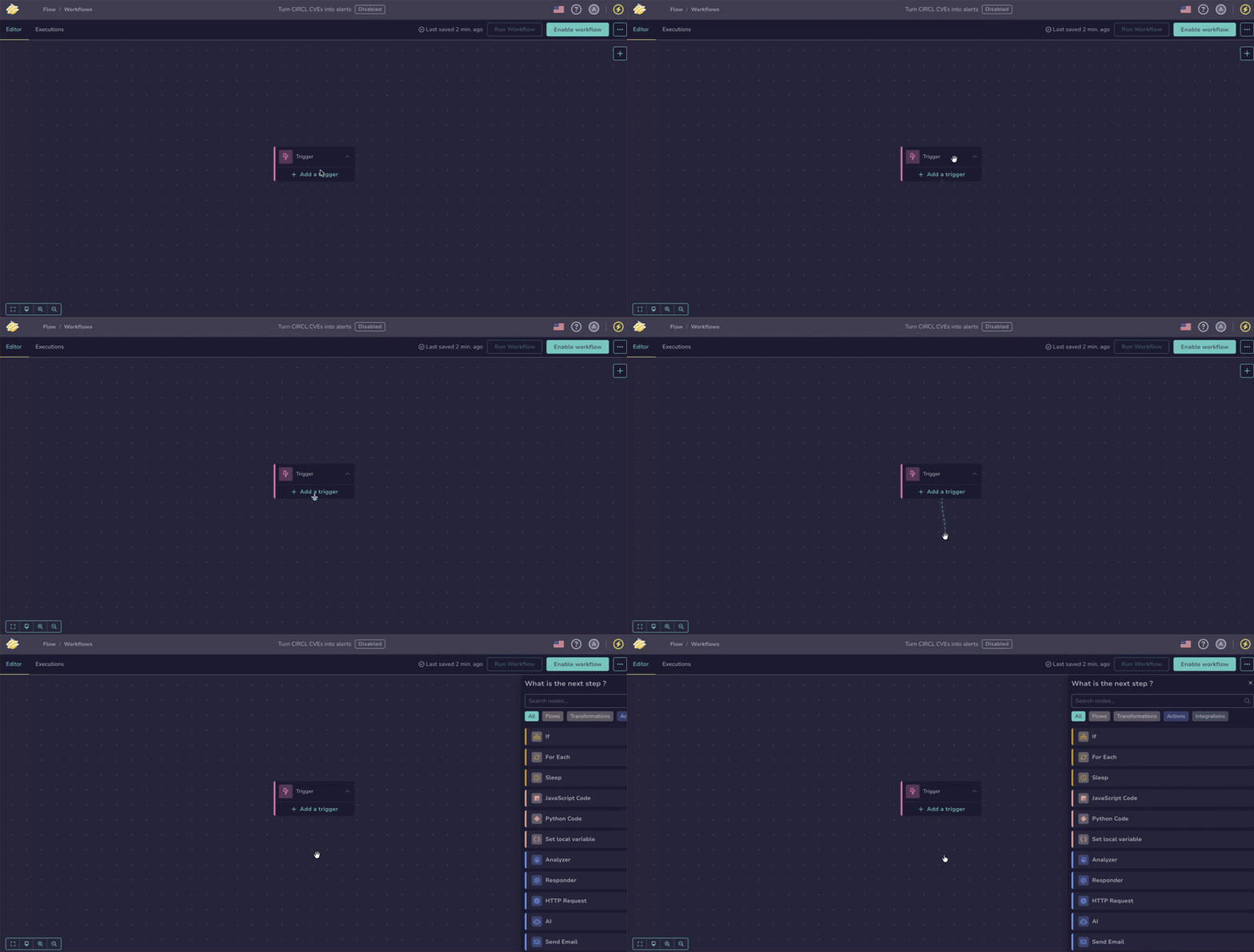
-
In the What is the next step? drawer, select Transformations.
-
Select Set local variable.
-
Select in the Variables section.
-
In the Set local variable drawer, enter the following information:
Fields marked with * are mandatory.
- Name *
The identifier for the variable.
- Type *
The data type of the variable:
string,number,boolean,array, orjson.- Value *
The value assigned to the variable.
Supported formats include:
- Static values
- References to other variables, using the $var button
- jq expressions, using the functions listed in Jq Functions
Variables
Insert a variable with the $var button, or enter
$and select a variable from the suggestions. To access a field, select the variable to edit its jq expression, or use the + button to insert the variable and the field together.Inside the expression, jq functions transform the value before it's inserted in the field. The whole expression stays inside the blue reference, for example:
$<node_name>.body.results[0].id: Reads the first identifier of an API response.$<node_name>.body.items | map(.name) | join(", "): Turns a list of objects into a comma-separated text.$<node_name>.body.createdAt / 1000 | todate: Formats a TheHive date, a Unix timestamp in milliseconds, as an ISO 8601 date.$<node_name>.output.title | ascii_upcase: Converts a text to uppercase.
See Jq Functions for the full list of available functions.
Secret global variables
The value can't reference a secret global variable because the resolved value would appear in plain text in the execution logs.
Use an online jq playground to validate your expressions before adding them to the workflow.
Examples
"Case $caseNumber – severity $caseSeverity": Builds a text from two variables.if $caseSeverity >= 3 then "High" else "Low" end: Maps a numeric severity to a label.{number: $caseNumber, assignee: $caseAssignee, title: $caseTitle}: Builds a JSON object from several variables.$caseTitle | ascii_downcase | gsub("[^a-z0-9]+"; "-"): Turns a title into a lowercase identifier such assuspicious-login-from-new-country, for a ticket or file name.$caseObservables | map(select(.dataType == "domain") | .data) | unique | join(", "): Lists the distinct domain observables as a comma-separated text.$caseTags | map(select(startswith("mitre:")) | ltrimstr("mitre:")): Extracts the MITRE ATT&CK technique identifiers from tags such asmitre:T1566.$caseCreatedAt / 1000 | strftime("%Y-%m-%d %H:%M"): Formats a TheHive date, a Unix timestamp in milliseconds, as a readable date.$httpResponse.body | fromjson | .results[0].score // 0: Parses a JSON text returned by an API and reads a score, defaulting to0when missing.{id: $caseNumber, iocs: ($caseObservables | map(.data)), created: ($caseCreatedAt / 1000 | todate)}: Builds the payload of an outgoing webhook from several variables.
You can select to add multiple variables in the same node.
-
Optional: Select Add options to configure the following settings.
- Timeout & retry
Configure how the node handles execution time limits and failure recovery.
If the timeout is reached, the node fails.
Global timeout vs. local timeout
A timeout for the entire workflow is defined when creating the workflow. When both a node timeout and a workflow-level timeout are defined, the shortest timeout value applies.
Field Description Timeout Maximum allowed execution time for the node, in seconds, minutes, or hours. The minimum value is 30 seconds. Retry attempts Number of times the node is retried on failure. Retry delay Time to wait between retry attempts, in seconds, minutes, or hours. Without a delay, retries run 1 second apart by default. Backoff Coefficient applied to the retry delay to increase the wait time after each failed attempt. Retries and timeouts
If the node includes retry settings, the timeout applies to each attempt, not to the total duration of all attempts.
- Execution configuration
Set the Execution mode to control how the node behaves when several branches converge on it.
Mode Behavior Execute once per branch The node runs once for each incoming branch. Applies when this section isn't configured. Wait for all branches The node waits for all incoming branches to complete, then runs once.
Execution output
When executed, the node returns the value assigned to the variable as the output.
To access the output, select your Set local variable node and then select in the top-right corner of the screen. Hover over the output name to view its details.
This output can then be reused as an output variable in subsequent nodes, using the $var button or by entering $ and selecting the variable from the suggestions. The inserted reference is displayed as $<node_name>.<field_name>.
Configure a Python code node#
A Python code node executes custom Python scripts within a workflow. Use it for advanced data transformations, integration with external tools, or any logic that standard nodes can't handle.
-
Go to the Flow view from the sidebar menu.
-
Select a workflow from the list.
-
Drag the previous node connector to an empty area of the canvas.
-
In the What is the next step? drawer, select Transformations.
-
Select Python code.
-
In the Python code drawer, enter your Python script in the editor.
- You can use libraries available in the configured execution image. The default image ships the Python standard library only. Providing additional libraries requires a custom execution image configured on the deployment.
- You can use variables.
- Under Environment, you can define environment variables the script can read. Each value can reference a variable.
Using variables in Python scripts
To insert a variable, use the $var button and assign it to a variable in your script:
<var_name> = $<var>The
$<var>reference is stored as aflow.get("<variable>")call. To get a value when the variable is missing, pass it as a second argument:flow.get("<variable>", <fallback_value>).Variables are scoped to the script by default. To make a value available to the workflow and reuse it as an output variable in later nodes, you must explicitly return it as a workflow output using
flow.set():flow.set("<var_name>", <var_name>)For values stored as files, such as large or binary content, use
flow.get_file_path()andflow.set_file_from_path(). These functions hand you a file path to read from or write to, instead of loading the whole value into the script.flow.get_file_path("<variable>")returns the path of a file made available to the script for a variable holding a file reference. Read it with normal file operations.flow.set_file_from_path("<name>", "<path>")registers a file written by the script as an output variable. The file is stored after the run, and the output carries its file reference.
See Examples for real-world use cases.
Accessing a field from a variable
To access a field, enter
.<field_name>directly after the variable.Only run code you trust
The script is executed as is on the server, with the same trust as the person who wrote it. Unlike the other nodes, the script has no network restrictions: it can reach any system the server can, including your internal network. Only paste code you understand, and review the code nodes of any imported workflow before running it.
A secret variable the script reads is handed to it in clear. Anything the script prints ends up in its
script_outoutput and in the execution logs, so never print a secret. -
Optional: Select Add options to configure the following settings.
- Timeout & retry
Configure how the node handles execution time limits and failure recovery.
If the timeout is reached, the node fails.
Global timeout vs. local timeout
A timeout for the entire workflow is defined when creating the workflow. When both a node timeout and a workflow-level timeout are defined, the shortest timeout value applies.
Field Description Timeout Maximum allowed execution time for the node, in seconds, minutes, or hours. The minimum value is 30 seconds. Retry attempts Number of times the node is retried on failure. Retry delay Time to wait between retry attempts, in seconds, minutes, or hours. Without a delay, retries run 1 second apart by default. Backoff Coefficient applied to the retry delay to increase the wait time after each failed attempt. Retries and timeouts
If the node includes retry settings, the timeout applies to each attempt, not to the total duration of all attempts.
- Execution configuration
Set the Execution mode to control how the node behaves when several branches converge on it.
Mode Behavior Execute once per branch The node runs once for each incoming branch. Applies when this section isn't configured. Wait for all branches The node waits for all incoming branches to complete, then runs once.
Execution outputs
When executed, the node returns the following outputs. Each output is a JSON value:
| Output | Type | Description |
|---|---|---|
script_out |
string | The raw output returned by the script. |
script_code |
number | The exit code returned by the script. 0 indicates success. |
script_image |
string | The Docker image digest used to run the script. |
| custom output | any | Any additional outputs defined using flow.set(). |
To access outputs, select your Python code node and then select in the top-right corner of the screen. Hover over each output name to view its details.
These outputs can then be reused as output variables in subsequent nodes, using the $var button or by entering $ and selecting the output from the suggestions. Inserted references are displayed in the following form:
$<node_name>.script_out: to get the raw script output$<node_name>.script_code: to get the exit code$<node_name>.script_image: to get the Docker image digest used to run the script$<node_name>.<custom_output>: to get a value you exposed withflow.set()
Configure a JavaScript code node#
A JavaScript code node executes custom JavaScript scripts within a workflow. Use it for advanced data transformations, integration with external tools, or any logic that standard nodes can't handle.
-
Go to the Flow view from the sidebar menu.
-
Select a workflow from the list.
-
Drag the previous node connector to an empty area of the canvas.
-
In the What is the next step? drawer, select Transformations.
-
Select JavaScript code.
-
In the JavaScript code drawer, enter your JavaScript script in the editor.
- You can use libraries available in the configured execution image. The default image ships the Node.js built-in modules only. Providing additional libraries requires a custom execution image configured on the deployment.
- You can use variables.
- Under Environment, you can define environment variables the script can read. Each value can reference a variable.
Using variables in JavaScript scripts
To insert a variable, use the $var button and assign it to a variable in your script:
let <var_name> = $<var>;The
$<var>reference is stored as aflow.get("<variable>")call. To get a value when the variable is missing, pass it as a second argument:flow.get("<variable>", <fallback_value>).Variables are scoped to the script by default. To make a value available to the workflow and reuse it as an output variable in later nodes, you must explicitly return it as a workflow output using
flow.set():flow.set("<var_name>", <var_name>);For values stored as files, such as large or binary content, use
flow.get_file_path()andflow.set_file_from_path(). These functions hand you a file path to read from or write to, instead of loading the whole value into the script.flow.get_file_path("<variable>")returns the path of a file made available to the script for a variable holding a file reference. Read it with normal file operations.flow.set_file_from_path("<name>", "<path>")registers a file written by the script as an output variable. The file is stored after the run, and the output carries its file reference.
See Examples for real-world use cases.
Accessing a field from a variable
To access a field, enter
.<field_name>directly after the variable.Only run code you trust
The script is executed as is on the server, with the same trust as the person who wrote it. Unlike the other nodes, the script has no network restrictions: it can reach any system the server can, including your internal network. Only paste code you understand, and review the code nodes of any imported workflow before running it.
A secret variable the script reads is handed to it in clear. Anything the script prints ends up in its
script_outoutput and in the execution logs, so never print a secret. -
Optional: Select Add options to configure the following settings.
- Timeout & retry
Configure how the node handles execution time limits and failure recovery.
If the timeout is reached, the node fails.
Global timeout vs. local timeout
A timeout for the entire workflow is defined when creating the workflow. When both a node timeout and a workflow-level timeout are defined, the shortest timeout value applies.
Field Description Timeout Maximum allowed execution time for the node, in seconds, minutes, or hours. The minimum value is 30 seconds. Retry attempts Number of times the node is retried on failure. Retry delay Time to wait between retry attempts, in seconds, minutes, or hours. Without a delay, retries run 1 second apart by default. Backoff Coefficient applied to the retry delay to increase the wait time after each failed attempt. Retries and timeouts
If the node includes retry settings, the timeout applies to each attempt, not to the total duration of all attempts.
- Execution configuration
Set the Execution mode to control how the node behaves when several branches converge on it.
Mode Behavior Execute once per branch The node runs once for each incoming branch. Applies when this section isn't configured. Wait for all branches The node waits for all incoming branches to complete, then runs once.
Execution outputs
When executed, the node returns the following outputs. Each output is a JSON value:
| Output | Type | Description |
|---|---|---|
script_out |
string | The raw output returned by the script. |
script_code |
number | The exit code returned by the script. 0 indicates success. |
script_image |
string | The Docker image digest used to run the script. |
| custom output | any | Any additional outputs defined using flow.set(). |
To access outputs, select your JavaScript code node and then select in the top-right corner of the screen. Hover over each output name to view its details.
These outputs can then be reused as output variables in subsequent nodes, using the $var button or by entering $ and selecting the output from the suggestions. Inserted references are displayed in the following form:
$<node_name>.script_out: to get the raw script output$<node_name>.script_code: to get the exit code$<node_name>.script_image: to get the Docker image digest used to run the script$<node_name>.<custom_output>: to get a value you exposed withflow.set()
Examples#
The following examples show common use cases for the Python code node.
Multi-criteria alert scoring#
Calculates a priority score from 0 to 100 and a priority level from P1 to P4, based on severity, asset criticality, and enrichment results.
severity = $severity
asset_criticality = $asset_criticality
vt_verdict = $vt_verdict
ioc_matched = $ioc_matched

severity_scores = {"low": 10, "medium": 30, "high": 60, "critical": 90}
score = severity_scores.get(severity, 0)
score += min(int(asset_criticality or 1) * 5, 25)
if vt_verdict == "malicious":
    score += 40
if ioc_matched:
    score += 30
score = min(score, 100)
priority = "P1" if score >= 80 else "P2" if score >= 60 else "P3" if score >= 40 else "P4"
flow.set("score", score)
flow.set("priority", priority)
SIEM/EDR payload normalization#
Maps source-specific field names from SIEM or EDR payloads to a consistent set of output fields, regardless of the source system.
source_type = $source_type
raw_payload = $raw_payload

mapping = {
    "siem": ("SourceIP", "UserName", "ComputerName"),
    "edr":  ("local_ip", "user_name", "device_name")
}

ip_k, user_k, host_k = mapping.get(source_type, ("src_ip", "user", "hostname"))

src_ip = raw_payload.get(ip_k, "")
user = raw_payload.get(user_k, "")
hostname = raw_payload.get(host_k, "")

flow.set("src_ip", src_ip)
flow.set("user", user)
flow.set("hostname", hostname)