Configure a Flow Node#
6.0 One
Flow nodes control how workflows branch, loop, process multiple items, pause, or call another workflow in TheHive Flow. An execution path ends when it reaches a node with no next step.
Configure a For each flow node#
A For each flow node iterates over each item in an array or object that matches a jq expression and executes the same sequence of nodes for each entry.
Each iteration is independent. To collect results across iterations, declare loop output variables when configuring the node, or process each result directly within the loop.
Nested loops
For each nodes can be nested: a For each node can contain another For each node in its body, to iterate over multi-level data structures.
-
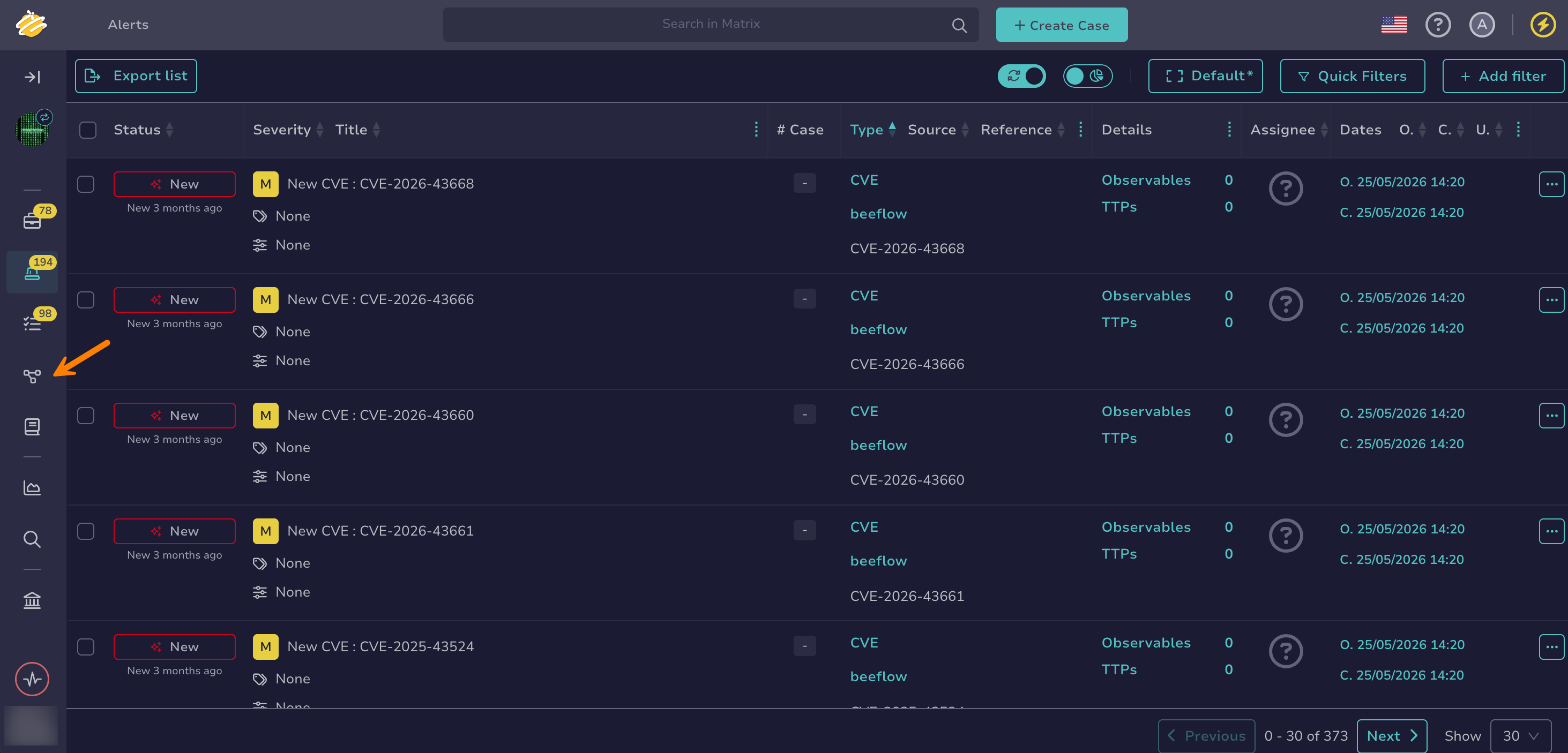
Go to the Flow view from the sidebar menu.
-
Select a workflow from the list.
-
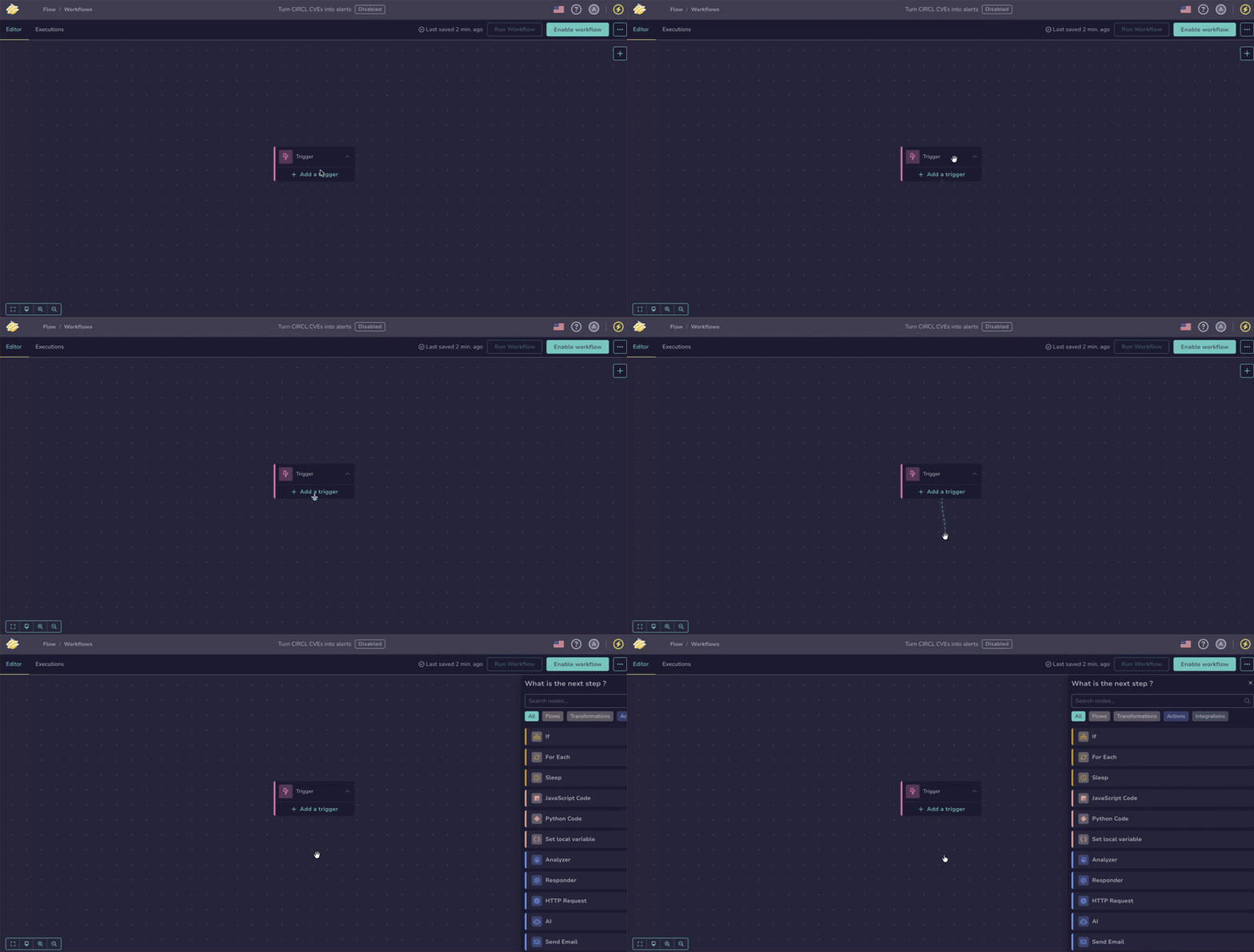
Drag the previous node connector to an empty area of the canvas.
-
In the What is the next step? drawer, select Flows.
-
Select For each.
-
In the For each drawer, go to Field to iterate over and enter a jq expression that selects the items.
The expression must return a JSON array or object. The node then iterates over each item in the result.
You can select variables using the $var button. The functions available in expressions are listed in Jq Functions.
Accessing a field from a variable
To access a field, enter
.<field_name>directly after the variable.Use an online jq playground to validate your expressions before adding them to the workflow.
Examples
$<node_name>.body.items: Iterates over each item in theitemsarray from the node's response body.$<node_name>.body: Iterates over each item of a response body that is an array, for example the tasks listed by a TheHive integration node with the Post Query action.$<node_name>.body | map(select(.status == "Waiting")): Filters the listed tasks with status"Waiting", then iterates over the result.$<node_name>.body | map(select(.dataType == "ip" and (.tags | contains(["internal"]) | not))): Iterates over the listed IP observables that aren't taggedinternal.$<node_name>.body.alerts | sort_by(.severity) | reverse | .[0:5]: Iterates over the five alerts with the highest severity.$<node_name>.body | unique_by(.data): Iterates over the listed observables, skipping duplicates that share the same value.$<node_name>.body.events | group_by(.source.ip) | map({ip: .[0].source.ip, count: length}): Builds one item per source IP address with the number of events, then iterates over the result.$<node_name>.body.message | split("\n") | map(select(test("^Failed login"))): Splits a text into lines and iterates over the lines that start withFailed login.
The Key variable and Value variable fields are read-only: the current key is always available as
idxand the current item asitemin theLoopbranch. -
Optional: Turn on the Parallel execution toggle to run iterations simultaneously instead of one at a time, then enter a Max parallelism value to cap how many run concurrently.
- In sequential mode, the default, iterations run one at a time. The loop stops on the first error.
- In parallel mode, iterations run concurrently up to the configured limit. The first failure cancels the remaining iterations. The node waits for the running ones to stop, then reports the errors from all failed iterations together.
-
Optional: To collect results across iterations, go to the Loop output variables section and select .
Enter a Variable name and a JQ value referencing an output of a node in the
Loopbranch. In the JQ value field, reference a variable with the $var button, or by entering$and selecting the variable from the suggestions. The node evaluates the expression after each iteration, aggregates the values across all iterations, and makes them available as loop output variables in the nodes that follow the loop. A loop output variable can't reference a secret global variable.
Branches
The For each node has two branches:
| Branch | Description |
|---|---|
Loop branch |
Connects to nodes that execute for each item in the collection. In all nodes on this branch, the item and idx output variables hold the current item and its key. |
Done branch |
Connects to nodes that execute once, after all iterations have completed. |
Configure an If flow node#
An If flow node evaluates a jq expression and directs execution down two branches based on the boolean result: true or false.
Multiple conditions
The If node evaluates a single condition. To implement switch/case logic with multiple possible values, chain several If nodes in sequence, each handling one case on its false branch.
-
Go to the Flow view from the sidebar menu.
-
Select a workflow from the list.
-
Drag the previous node connector to an empty area of the canvas.
-
In the What is the next step? drawer, select Flows.
-
Select If.
-
In the If drawer, enter your jq expression for the condition.
The expression must evaluate to a boolean.
You can select variables using the $var button. The functions available in expressions are listed in Jq Functions.
Accessing a field from a variable
To access a field, enter
.<field_name>directly after the variable.Use an online jq playground to validate your expressions before adding them to the workflow.
Examples
$<node_name>.code == 200: Returnstrueif the HTTP status code is 200.$<node_name>.body.severity >= 3: Returnstrueif the severity of a case or alert returned by a TheHive integration node is High or Critical.$<node_name>.body._id != null: Returnstrueif the field is present.$<node_name>.body.tags | any(. == "phishing" or . == "malware"): Returnstrueif at least one tag isphishingormalware.$<node_name>.body | map(select(.dataType == "ip")) | length > 10: Returnstrueif more than 10 IP observables are listed, for example by a Post Query action listing the observables of an alert.$<node_name>.body.title | test("^\\[SOC\\]"; "i"): Returnstrueif the title starts with[SOC], regardless of letter case.$<node_name>.body._createdAt > (now - 3600) * 1000: Returnstrueif the entity was created less than an hour ago. TheHive dates are Unix timestamps in milliseconds.($<node_name>.body.customFields | map(select(.name == "businessUnit")) | .[0].value) // "unknown" | IN("finance", "hr"): Returnstrueif thebusinessUnitcustom field isfinanceorhr, treating a missing field asunknown.
Branches
The If node has two branches:
| Branch | Description |
|---|---|
true branch |
Connects to nodes that execute when the condition evaluates to true. |
false branch |
Connects to nodes that execute when the condition evaluates to false. |
The two branches don't have to converge. All the following layouts are valid:
- Configure only the
truebranch and leave thefalsebranch empty. The workflow ends silently on that branch. - Merge both branches into a common node.
- End each branch on a separate path.
Configure a Sleep flow node#
A Sleep flow node pauses the execution path for a specified duration. When the duration elapses, execution continues with the next node.
Use it to wait between two actions, for example to let an external system finish processing before querying its result.
-
Go to the Flow view from the sidebar menu.
-
Select a workflow from the list.
-
Drag the previous node connector to an empty area of the canvas.
-
In the What is the next step? drawer, select Flows.
-
Select Sleep.
-
In the Sleep drawer, enter a Duration and select its unit: seconds, minutes, or hours.
The minimum duration is 1 second.
The duration can't exceed the workflow timeout
If the duration is longer than the workflow timeout, the execution times out before the pause completes. The editor flags such a duration when you configure the node.
Configure a Subworkflow flow node#
A Subworkflow flow node calls another workflow of the same organization and waits for it to finish before continuing with the next node. Use it to reuse a sequence of nodes across workflows instead of rebuilding it in each one, for example a shared enrichment or notification routine.
The calling workflow passes values to the input variables of the called workflow, and the nodes that follow read its exit variables as outputs. The called workflow also receives the trigger payload of the calling workflow, unchanged. The other variables of the calling workflow aren't passed.
Before you begin
In the called workflow:
- Enable the workflow.
- Declare the input and exit variables in its settings.
-
Go to the Flow view from the sidebar menu.
-
Select a workflow from the list.
-
Drag the previous node connector to an empty area of the canvas.
-
In the What is the next step? drawer, select Flows.
-
Select Subworkflow.
-
In the Subworkflow drawer, go to Select a workflow and select the workflow to call.
The list contains the enabled workflows of the organization, except the one you're editing, so a workflow can't call itself.
-
In the Subworkflow inputs section, enter a jq expression for each input variable of the called workflow.
The section lists one field per input variable the called workflow declares. Leave a field empty to not assign that input variable.
The calling workflow evaluates each expression when the run reaches the node, so it can reference any variable of the calling workflow, except a secret global variable. Reference a variable with the $var button, or by entering
$and selecting the variable from the suggestions. The functions available in expressions are listed in Jq Functions.Examples
$input.alert_id: Passes the alert identifier the calling workflow received when it was run from an alert page.$<node_name>.body._id: Passes the identifier of the case created by a TheHive integration node.$<node_name>.item.data: Passes the value of the current observable, for a Subworkflow node placed in theLoopbranch of a For each node that iterates over observables.$<node_name>.body | map(.data): Passes the values of the observables listed by a TheHive integration node as an array, for example with the Post Query action.
-
Optional: Select Add options to configure a Timeout.
The timeout is the maximum time the calling workflow waits for the called workflow. The minimum value is 30 seconds. When the run reaches it, the called workflow stops and the node times out. Without a node timeout, the timeout of the called workflow applies. When both are set, the shorter one applies. A called workflow is never retried.
Once the node is configured, the nodes that follow it can use the exit variables of the called workflow. Reference them with the $var button, or by entering $ and selecting the variable from the suggestions. An inserted reference is displayed as $<node_name>.<exit_variable_name>.
If the called workflow fails or times out, the Subworkflow node fails. The run of the called workflow is available only from the execution details of the node.
Changes to the called workflow
Changes to the called workflow affect the workflows that call it:
- Turned off: The node fails when the run reaches it.
- Input variable renamed or deleted: The value entered for it is kept and flagged. The calling workflow can't run until you move or remove the value.
- Deleted: The calling workflow can't run until you select another workflow.
Indirect loops aren't detected
A workflow can't call itself directly, but nothing prevents a loop across several workflows, for example workflow A calling workflow B, which calls workflow A. Such a loop runs until the run reaches the first timeout in the chain.