Manage Required Actions on a Task#
Ask your own organization or a linked organization to take action on a task. Use this when you need input or assistance from your team or from another team to move an investigation forward.
Requiring action doesn't change the task status, so work on the task can continue while you wait. The organization you ask sees the request on the task and marks the action as done once it has acted.
Require action from your organization#
-
Find the task you want to require action on.
-
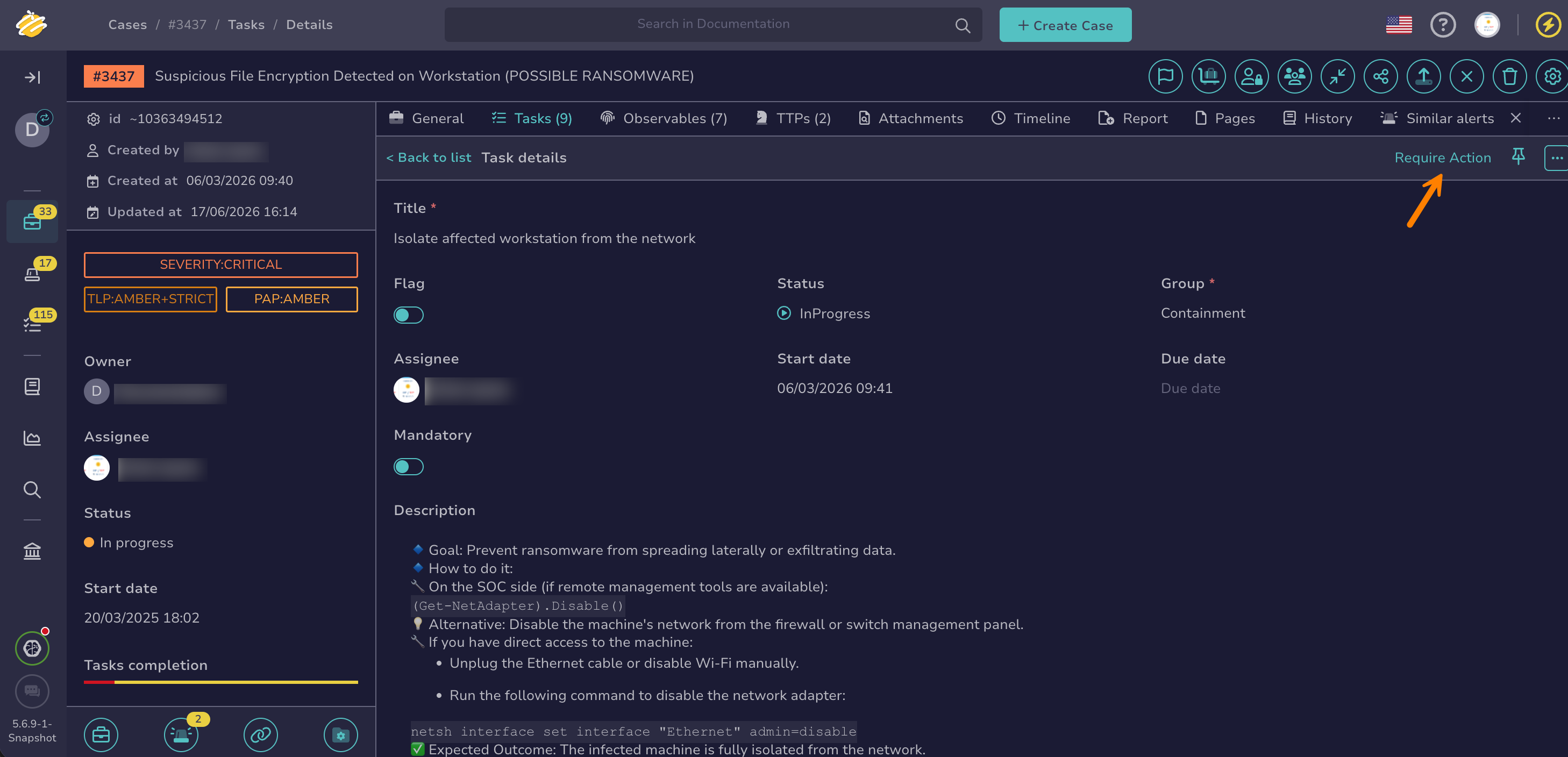
At the top of the task details, select Require Action.
-
Choose whether to add a task log to explain your request:
- To add a task log, select Create a log.
- To send the request without a task log, select Proceed without log.
Require action from a linked organization#
Shared tasks only
You can require action only from linked organizations the task is shared with. If the task isn't shared yet, refer to Share a Task with Other Internal Organizations.
-
Find the task you want to require action on.
-
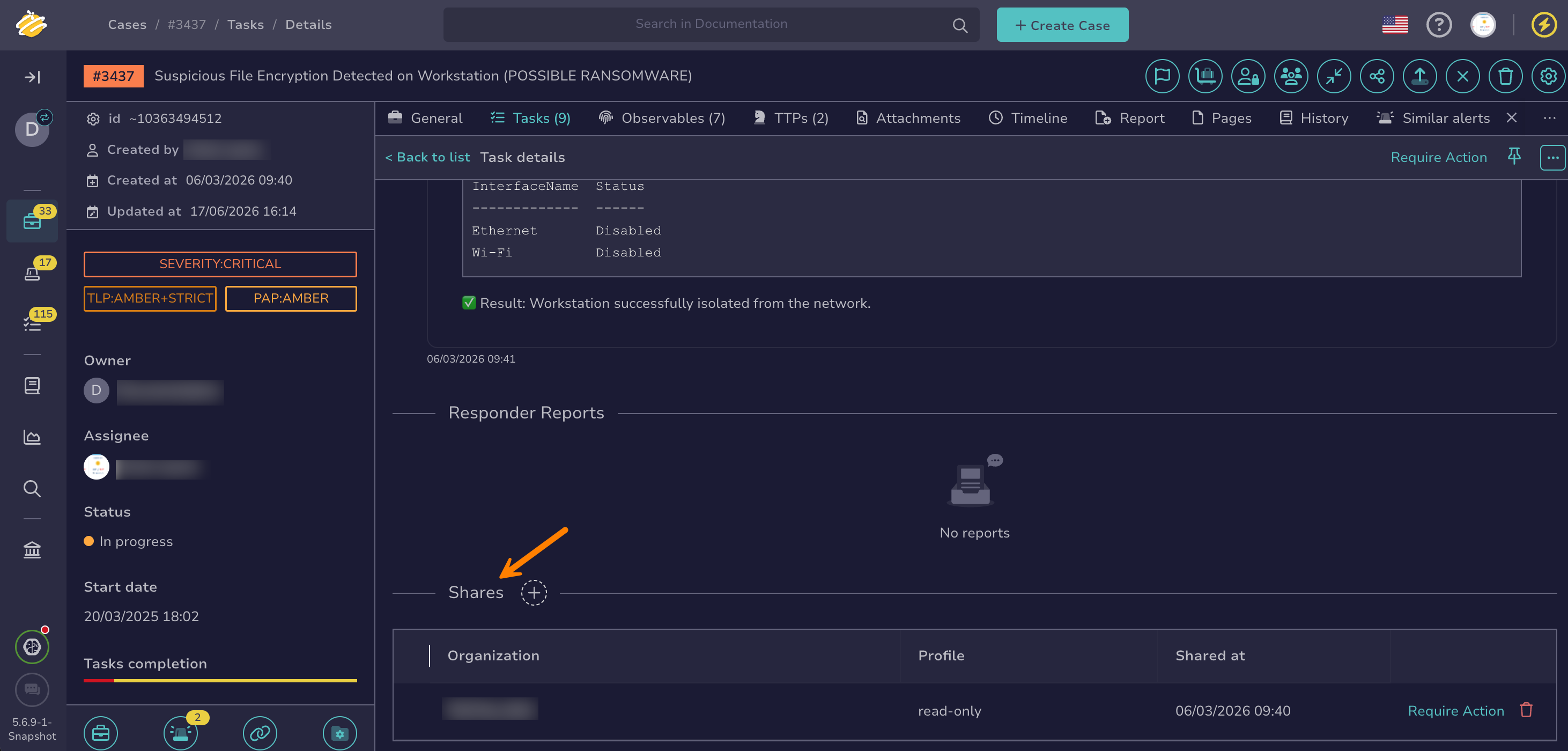
Move through the Shares section.
-
In the row of the organization you want to ask, select Require Action.
-
Choose whether to add a task log to explain your request:
- To add a task log, select Create a log.
- To send the request without a task log, select Proceed without log.
Cancel an action request to a linked organization#
-
Find the task where you required action.
-
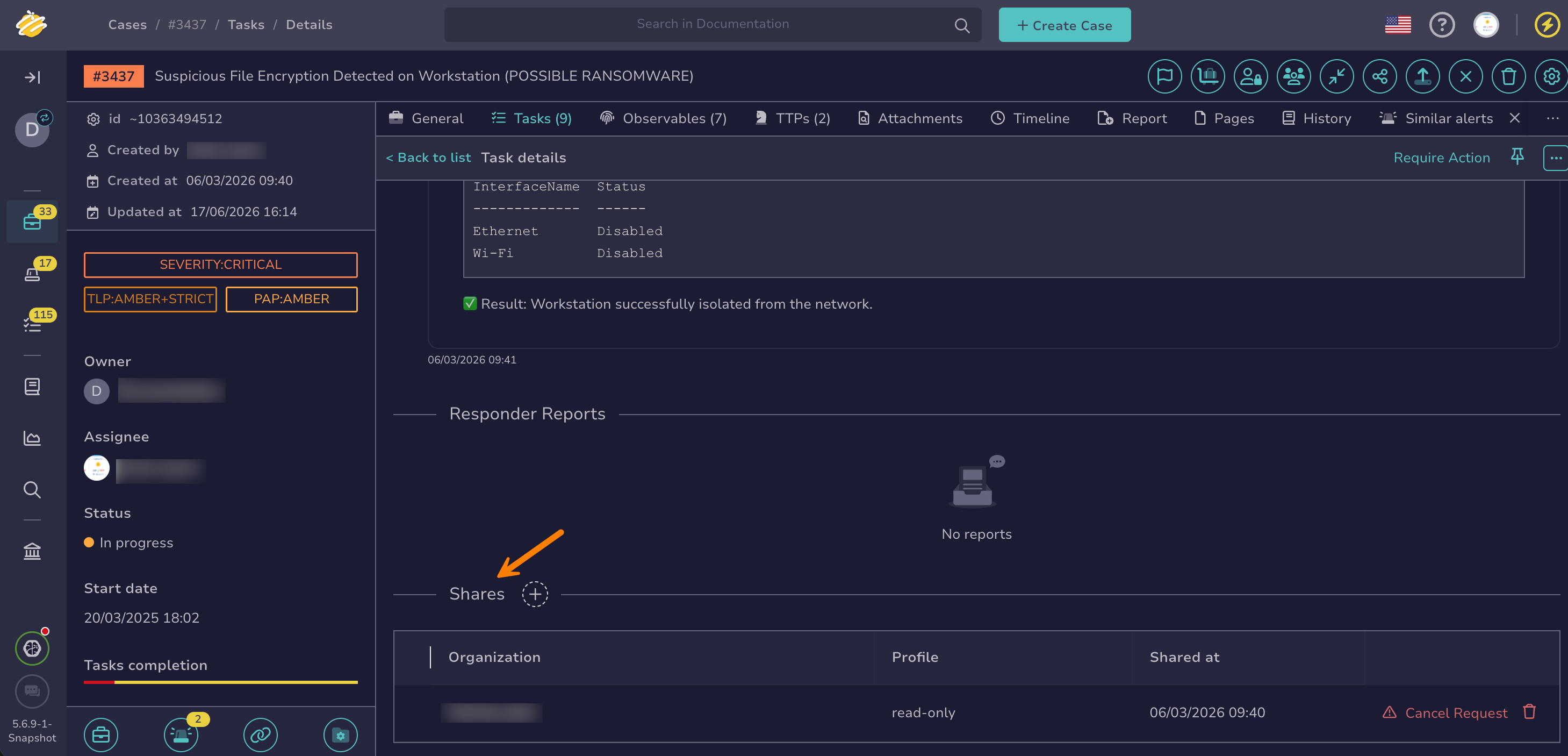
Move through the Shares section.
-
In the row of the organization, select Cancel Request.
-
Choose whether to add a task log:
- To add a task log, select Create a log.
- To cancel without a task log, select Proceed without log.
Mark a required action as done#
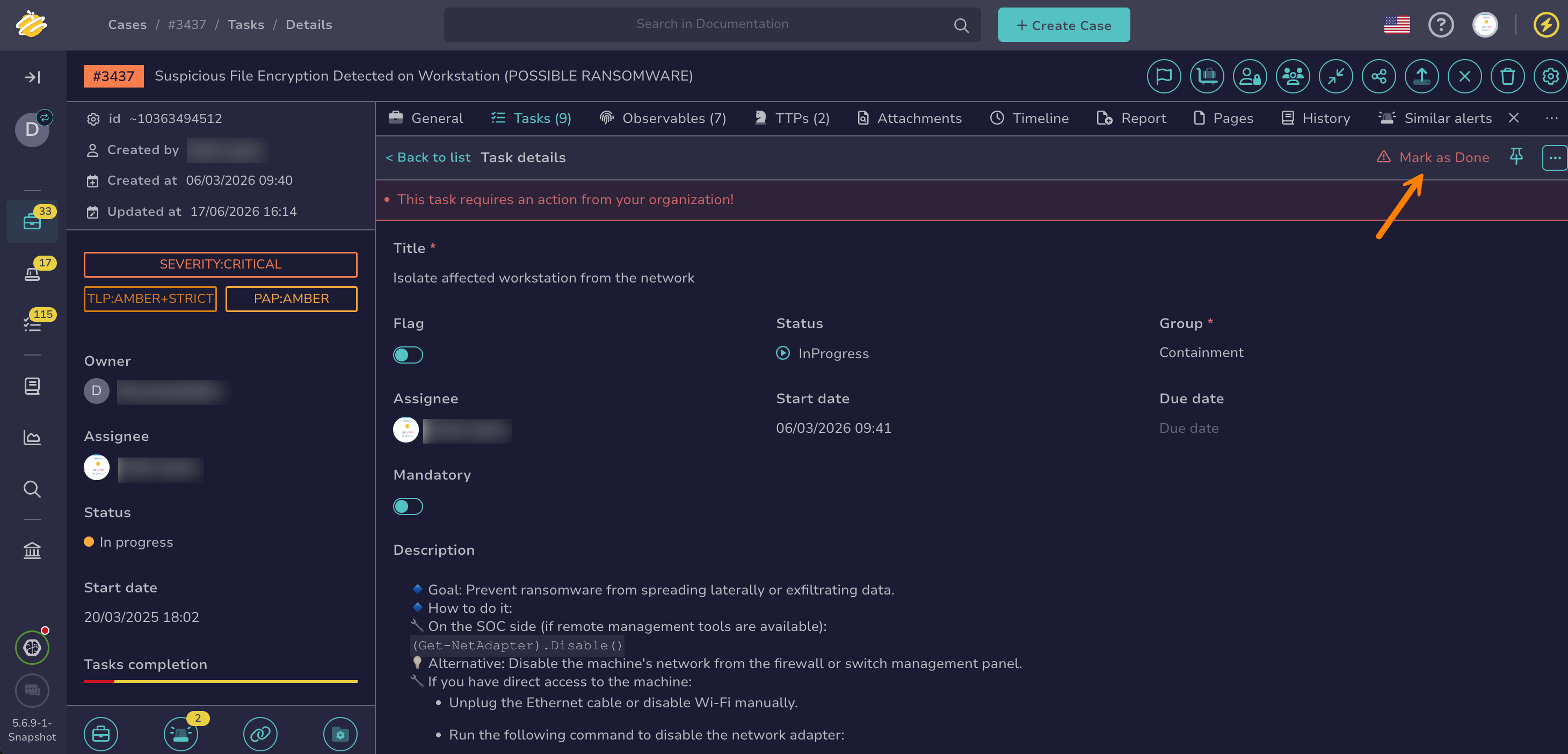
When action is required from your organization, the task details display the message This task requires an action from your organization! The request can come from a linked organization or from a member of your own organization.
-
Find the task that requires action.
-
At the top of the task details, select Mark as Done.
-
Choose whether to add a task log:
- Recommended: To record what you did, select Create a log.
- To mark the action as done without a task log, select Proceed without log.
Visual indicators for required actions#
TheHive highlights tasks and cases that require action from your organization:
-
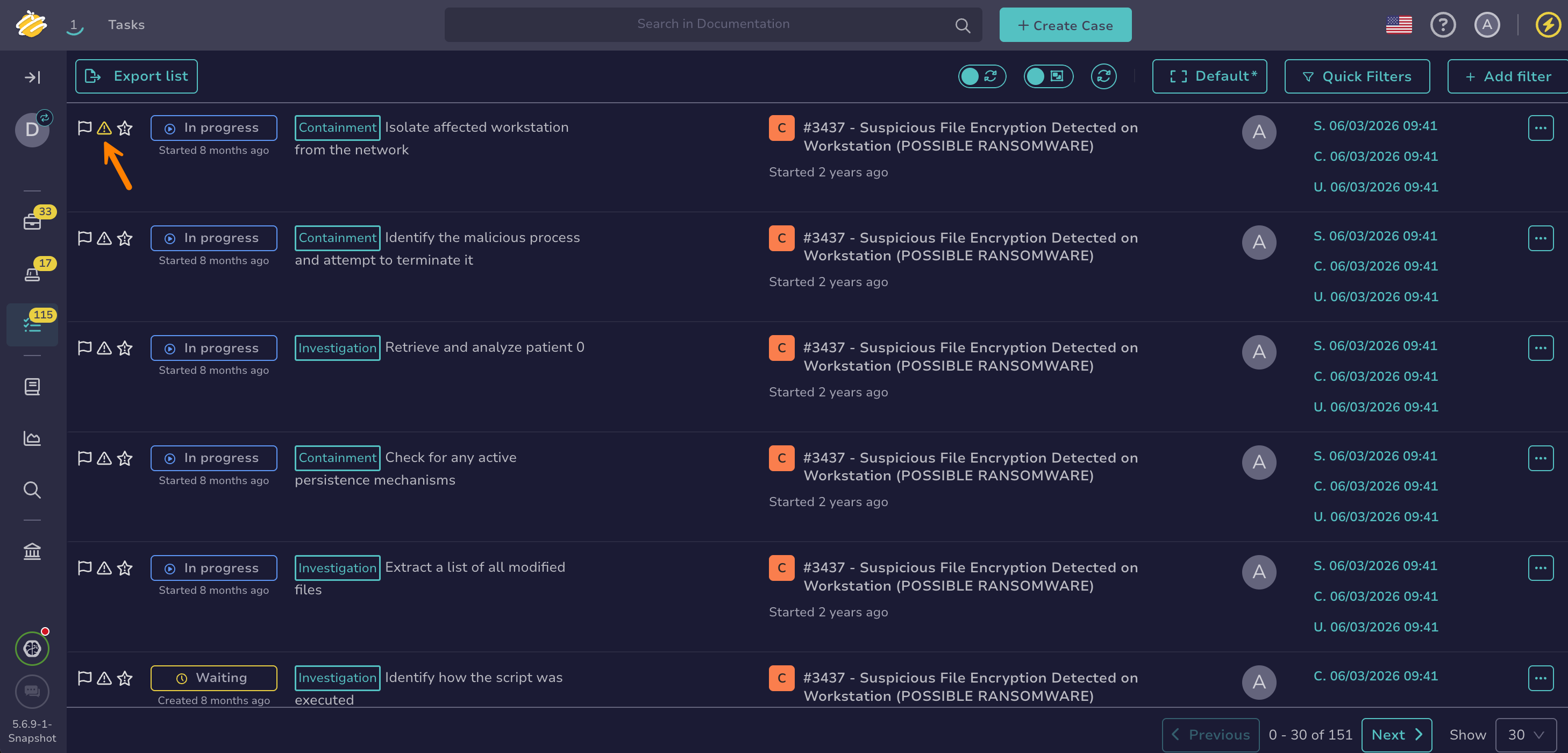
In the Tasks view and the Tasks tab of a case, turns yellow for tasks that require action from your organization.
-
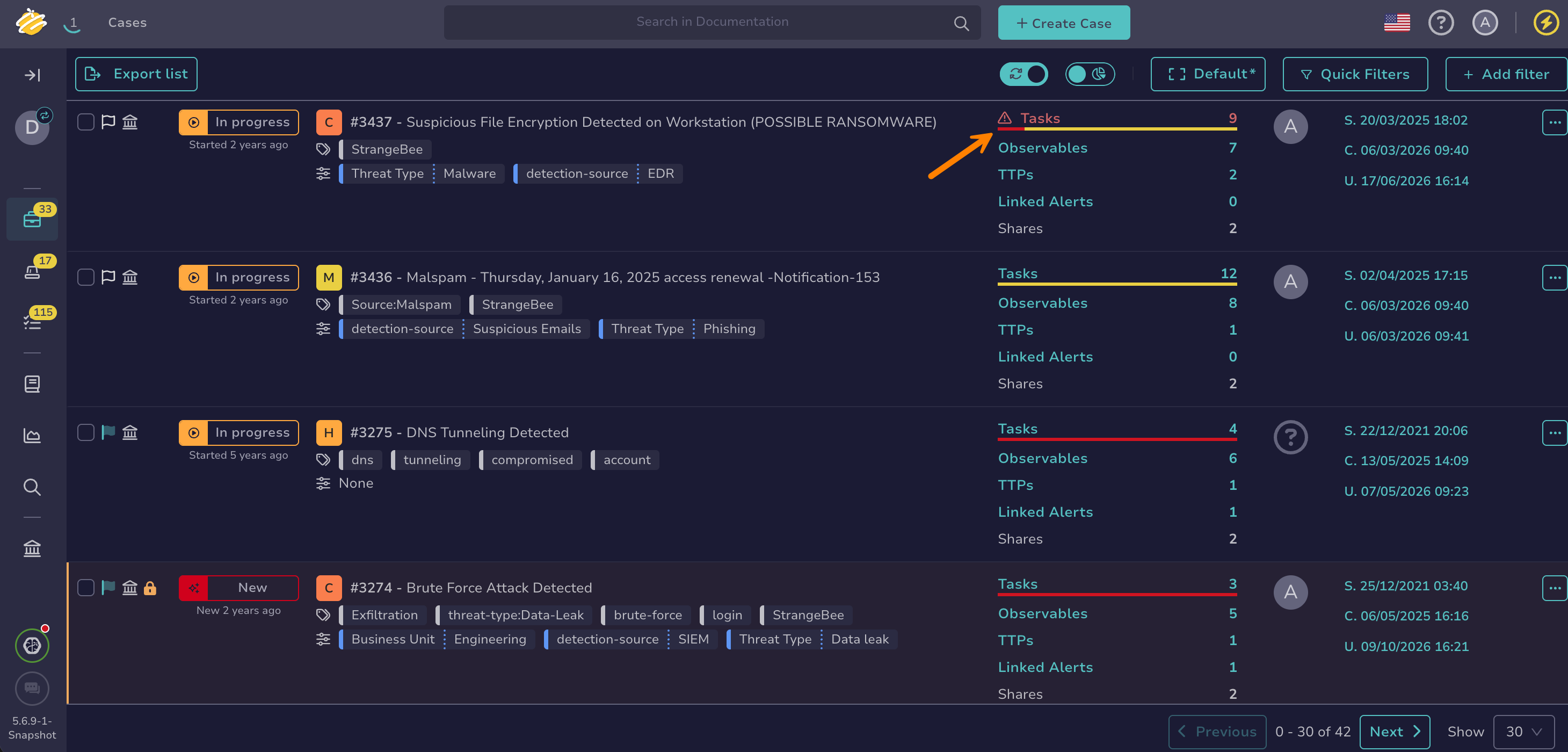
In the Cases view, a red appears next to Tasks for cases with at least one task that requires action from your organization. Tasks with the Cancelled status aren't counted. Select to show only the cases that require action.